Home Assistant 2026.9
There's room on this bus 🔧
The ninth release of 2026 has a headline feature you will never see in a screenshot. Modbus - the bus that solar inverters, heat pumps, and energy meters speak over - has always meant hand-writing your own register map in YAML. This release lays the groundwork for a different way: integrations that already know how your device talks, so you simply pick it in the UI like anything else.
Alongside that comes new voice processing in Home Assistant Cloud, active alerts and favorites on the Security dashboard, a shared Sources panel for History and Activity, an Activity that finally explains why something happened, a network map for Matter, charts you can navigate by keyboard and hear, and 13 new integrations.
Let's take a look at everything that landed in this release.
Modbus, Finally from the UI
Modbus has never been the flashiest part of Home Assistant. It quietly powers solar inverters, heat pumps, and energy meters - but only for anyone comfortable hand-writing a register map in YAML. That wall is exactly what kept a huge category of devices out of reach for regular users.
This release builds a second path alongside the existing one. The YAML-based Modbus integration still works and isn't going anywhere. But now there can be integrations that already know how a specific device talks over Modbus - you just pick your device in the UI, the same as any other integration.
Why This Is Bigger Than It Looks
Modbus is an old industrial protocol with no self-description whatsoever. A device won't tell you what's in which register - you have to know that up front from the manufacturer's manual, translate it into YAML, and maintain it. Get it wrong and, at best, you get no data; at worst, you write a value somewhere you shouldn't.
The second problem is sharing the connection. Plenty of devices accept only a handful of simultaneous Modbus sessions - and the moment Home Assistant and something else both target the inverter, they start fighting over the line. The new approach lets integrations share a single connection instead of each opening its own.
Where It Already Works
The first integrations built this way are here already:
- Fronius gained optional Modbus TCP (SunSpec) support and with it per-string solar data - current, voltage, power, and lifetime energy for each MPP tracker. The existing local HTTP API doesn't expose any of that. And Fronius is exactly where connection sharing matters: some models only accept a few simultaneous Modbus sessions
- Sofar Inverter Modbus - a new integration for Sofar Solar inverters that detects your model itself
- Flexit - heat recovery ventilation units, now configurable from the UI
Underneath sits a new standalone modbus-connection library built on tmodbus, a modern, fully typed Modbus library. The full story, including how to build your own integration on top of it, is on the developer blog.
So if you have an inverter or heat pump you've had to glue together by hand in YAML, it's worth watching whether it gets its own integration in the coming releases.
What's New in Home Assistant Cloud
You Can Finally See Who's Knocking
A small change with a big impact for anyone who cares about security. If you use remote access through Home Assistant Cloud, every login attempt looked like a local request from 127.0.0.1 - so the invalid login message told you nothing useful at all. Now the real IP address gets passed through, so you can tell whether it's you mixing up passwords or a bot from the other side of the world trying its luck.
A side benefit, and a very practical one: IP banning only really makes sense now, and its controls landed in the UI in the previous release. Combined with multi-factor authentication, that adds a nice bit of peace of mind to your home.
A comparison of Home Assistant Cloud, Cloudflare Tunnel, and a public IP, including hands-on walkthroughs, is in my remote access article.
New Voice Processing to Test
If you run your own voice assistant, you know the three places it regularly trips up: accents, background noise, and languages other than English. Nabu Casa is testing a new speech-to-text engine for Home Assistant Cloud that targets exactly those three - and reportedly holds up well with unusual accents in noisy rooms.
Under the hood it means switching to a new provider (Soniox), so it needs proper testing. The privacy guarantee is unchanged - no logging, no storing, no training on your audio.
It's available in Labs, with the usual caveat that it may not be a permanent addition. Cloud subscribers can turn it on in Settings > System > Labs; everyone else has a 31-day trial available.
If you've ever tried dictating to Home Assistant in a smaller language, you know the pain. The gap between engines tends to be far wider outside English - so this is the release where turning on Labs and leaving feedback actually pays off.
A Clearer Sign-Up
Signing up for Home Assistant Cloud now begins on a clear start page: one obvious Start your free trial button, a sign-in link, and - crucially - a list of what you actually get. Previously you had to guess more or less up front.
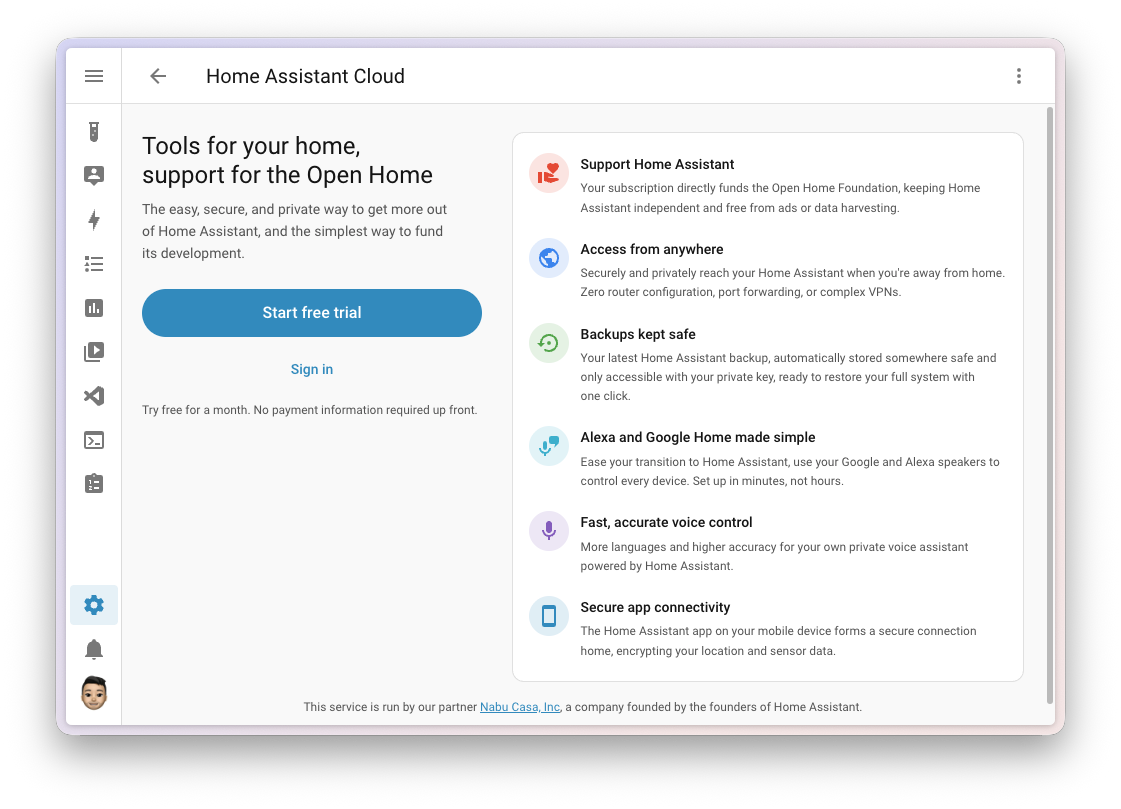
Confirming your email now also logs you in, so you can set up remote access, voice, and backups right away. The one-month trial still requires no payment details.
Active Alerts and Favorites for the Security Dashboard
The built-in Security dashboard gained two long-requested things - both configured from the same editor.
The new Active alerts section only appears when something actually needs your attention - a door left open, a smoke detector going off. You choose which entities can trigger it and, importantly, how serious each one is: Alert or Warning. So an open window doesn't get the same red treatment as an actual fire. When nothing is going on, the section stays out of the way entirely.
Right next to it, a Favorites section lets you pin the entities you check most - the doors, locks, or sensors that matter sit at the top instead of getting lost somewhere in the list.
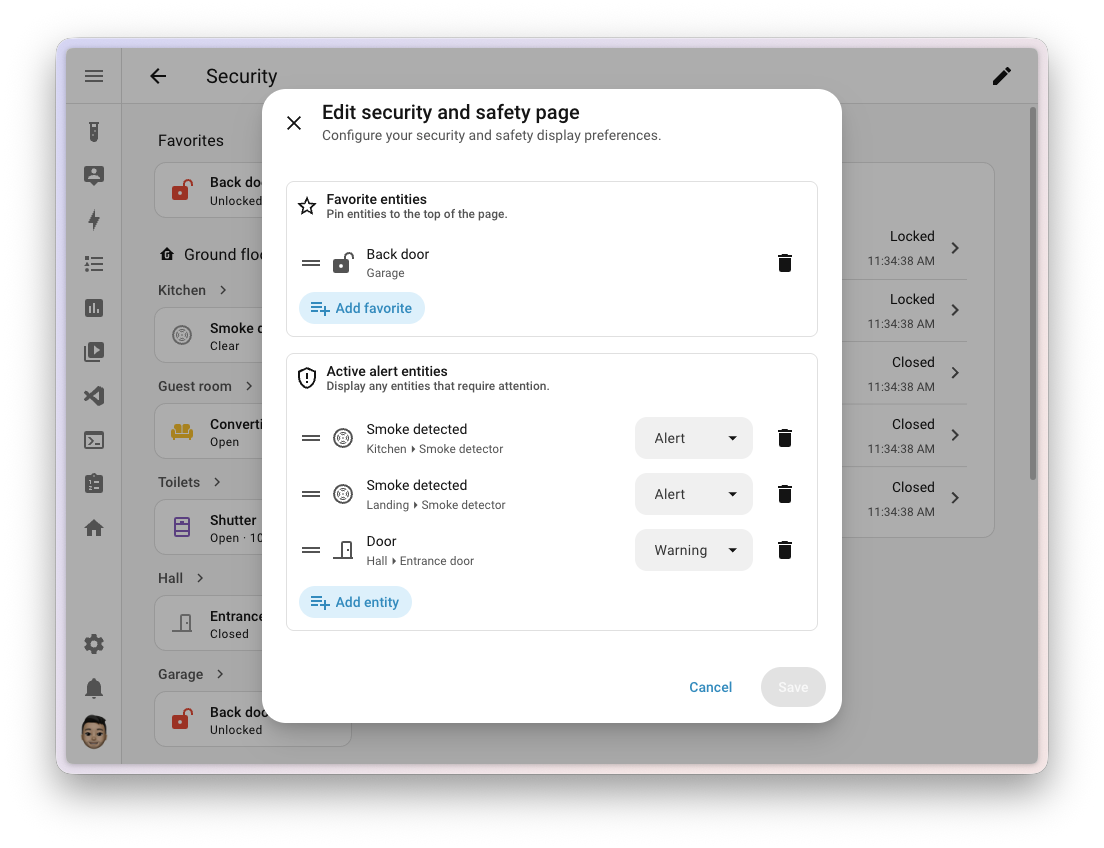
A nice aside: this started as a community-designed concept - right down to the severity colors and the pulsing animation for anything needing attention. And it isn't finished: surfacing the same alerts on the Home dashboard is still on the list for a future release.
A New Sources Panel for History and Activity
Finding exactly what you're after in History or Activity could get pretty daunting. Both pages now share a single Sources panel on the left that merges target picking (floors, areas, devices, and entities) with filtering by domain, device class, and integration.
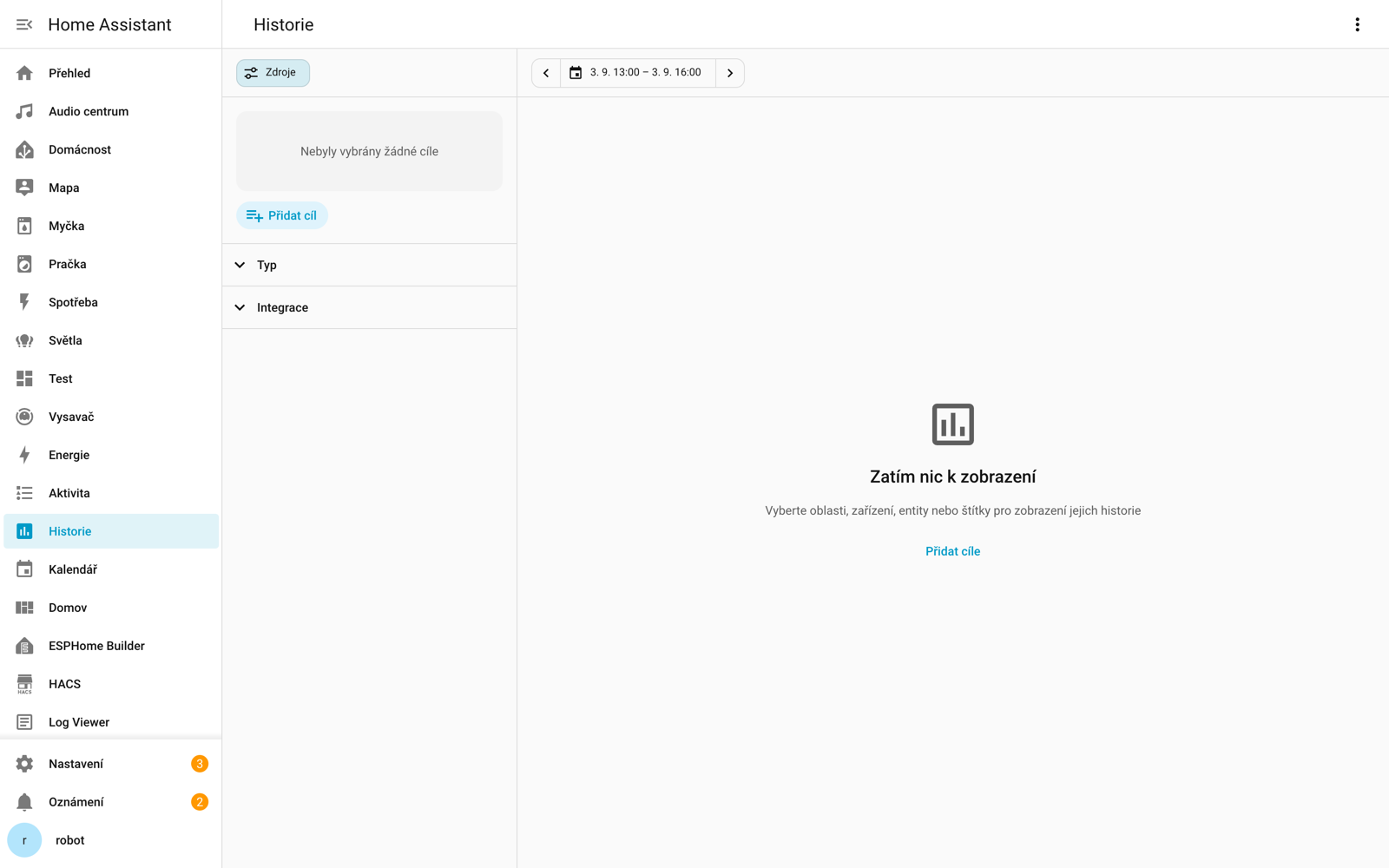
In practice that means narrowing a whole area down to, say, just its motion sensors. The panel docks to the side and opens automatically on wider screens, and tucks away as a pull-up sheet on narrower ones. Whatever you filter on is remembered next time.
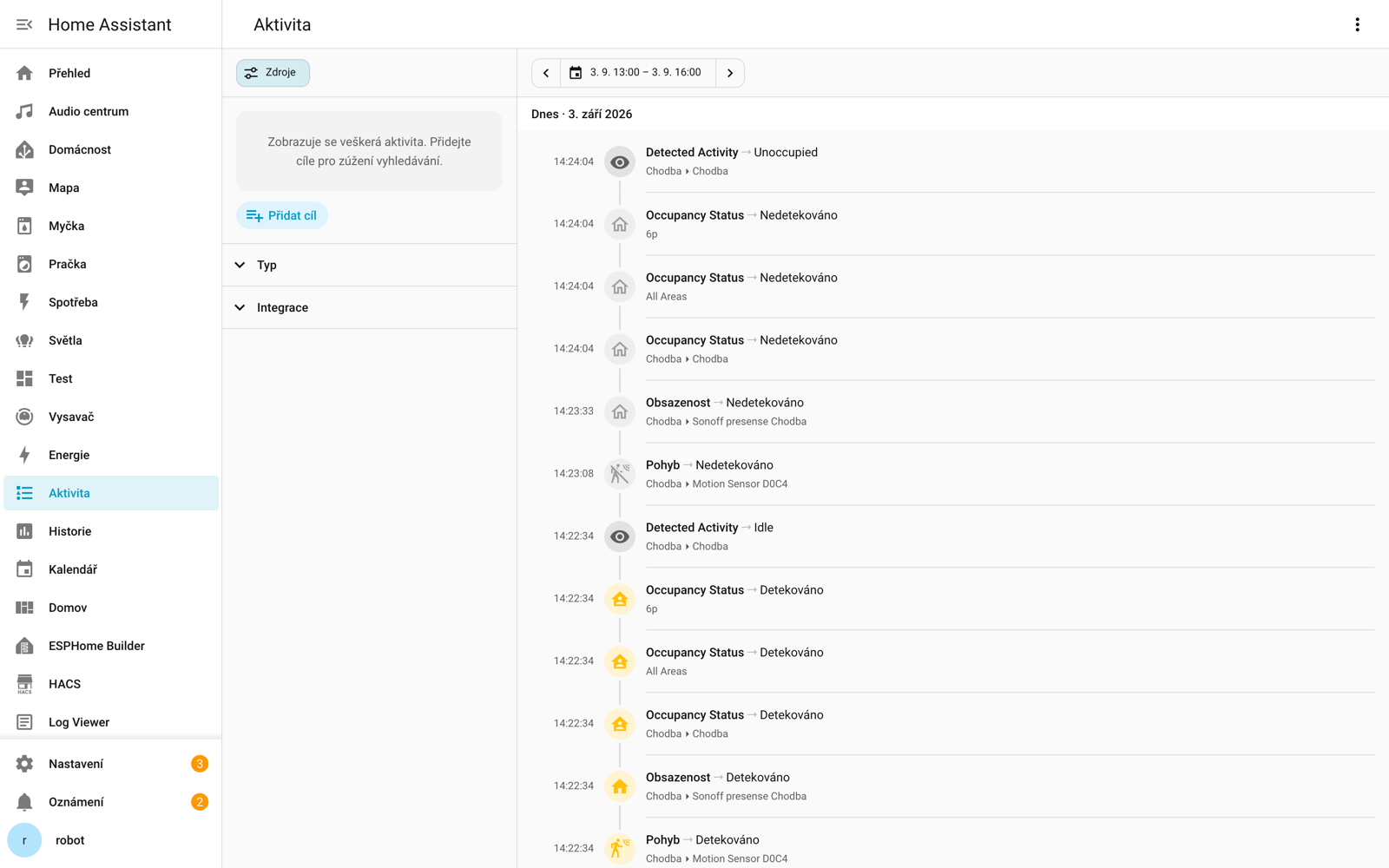
Both pages still behave the way they always have, on purpose: History waits for you to pick something before it draws a chart (rendering everything at once wouldn't be useful, or fast), while Activity keeps showing everything by default and can be narrowed with filters alone, no target required.
Two smaller things came along too: the date range picker is now a single pill with previous and next arrows, and long entity names on the History timeline draw above their bar and truncate to fit instead of being cut off.
Activity: From What Changed to Why It Changed
This is my personal favorite of the release. Open Activity and you can see exactly what changed: a light turned on, a door unlocked, a blind closed. What you could never see was why. Figuring that out meant guessing which automation was responsible, opening it, digging into its trace, and working backward to the entity that actually triggered it.
Now selecting any row in Activity opens a details dialog that lays out the full story, read top to bottom:
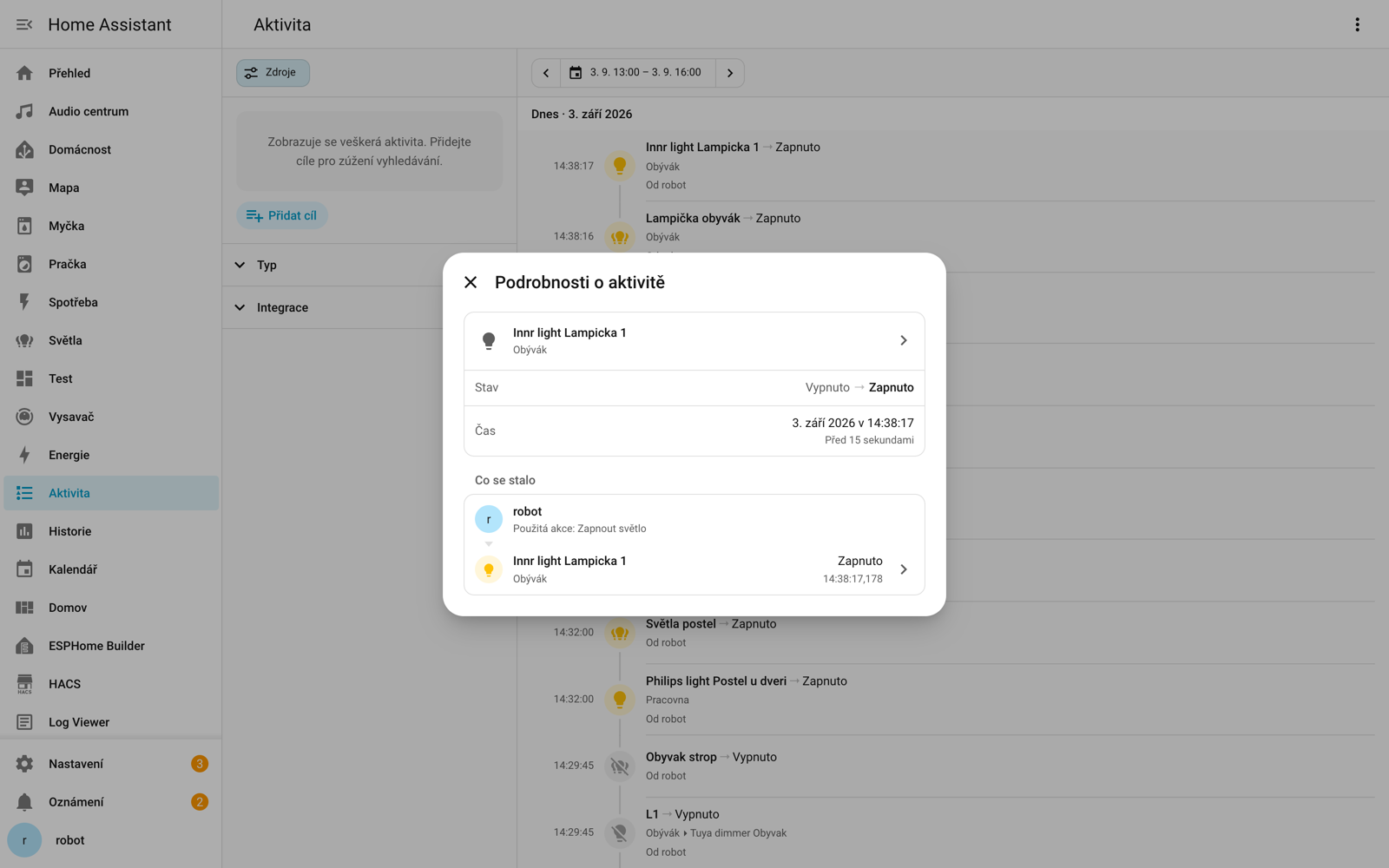
- What started it - a person, a state change, a schedule, an integration, or a restart
- What it passed through - the automations or scripts in the chain
- What finally happened - the entity's own change
And the best part: every step in that chain is clickable. It opens the entity behind it or, for automations, its trace directly. Timestamps go down to the millisecond, so even events that landed in the same second keep their correct order.
A Network Map for Matter
Zigbee (through ZHA), Z-Wave, and Bluetooth have shown you a map of how their devices connect for a while now. 🗺️ Matter never got the same treatment - even though the data existed all along, just not here: the Matter Server has its own working network map tucked away in a separate web interface most people never open.
The Matter panel now has a Show map button that brings that same picture right into Home Assistant, using the same graph experience you know from the other protocols:
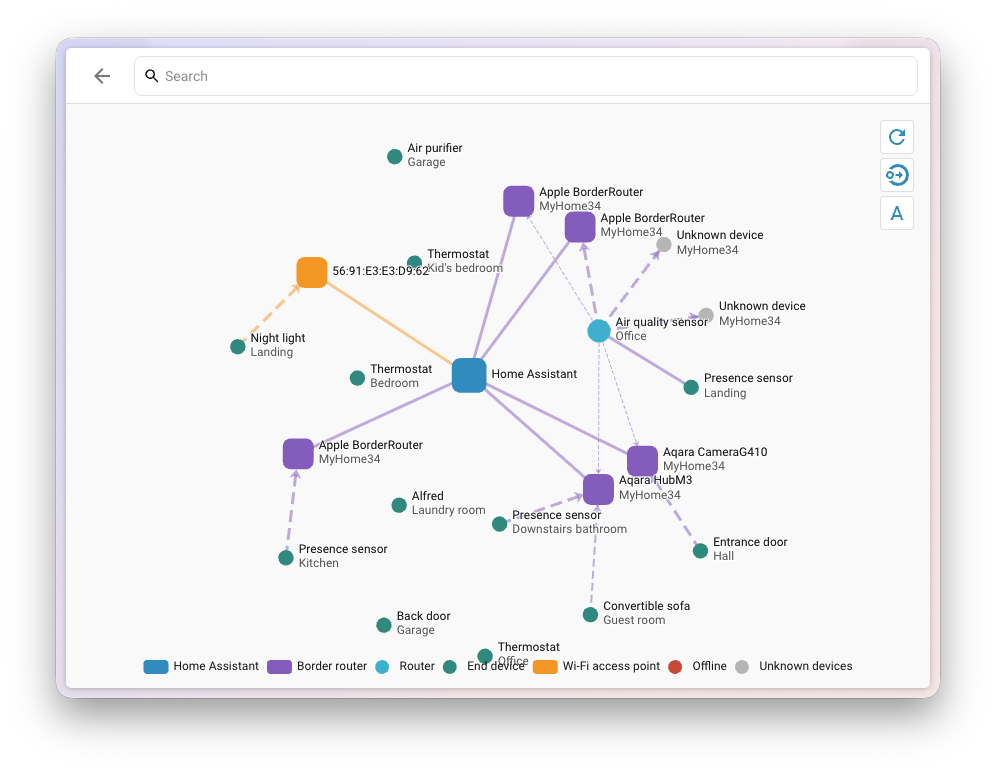
It shows the full picture: which devices talk over Thread and which over Wi-Fi, which ones are routers or border routers versus battery-powered end devices, and the path from Home Assistant to each one. Border routers and access points are named from something you'd actually recognize - their network host name or Wi-Fi network name instead of a serial number. Link color tells you the transport, Thread or Wi-Fi, and thickness and direction reflect the signal strength on each side of the connection.
If your Matter Server doesn't support this yet, the page tells you so instead of just failing - so you know to update rather than assume something's broken.
New Tile Card Features
The tile card keeps gaining ways to control an entity without opening its more-info dialog. Three more this time - all from the same contributor:
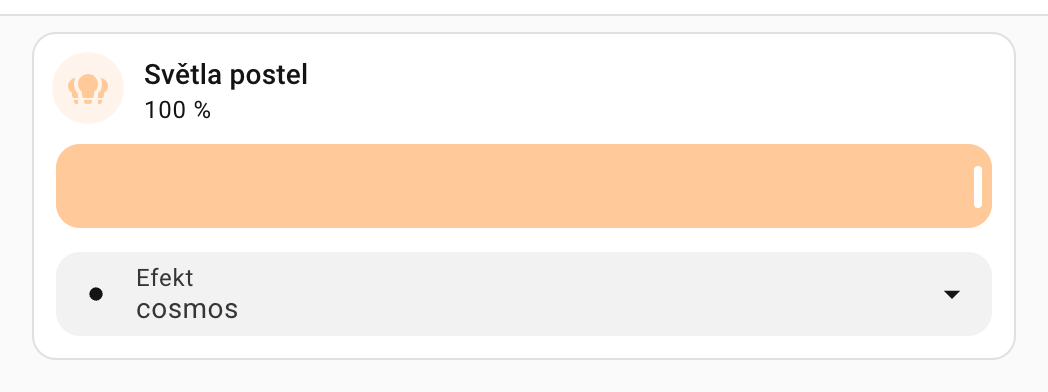
- Light effect - pick and preview an effect like Rainbow directly from the tile
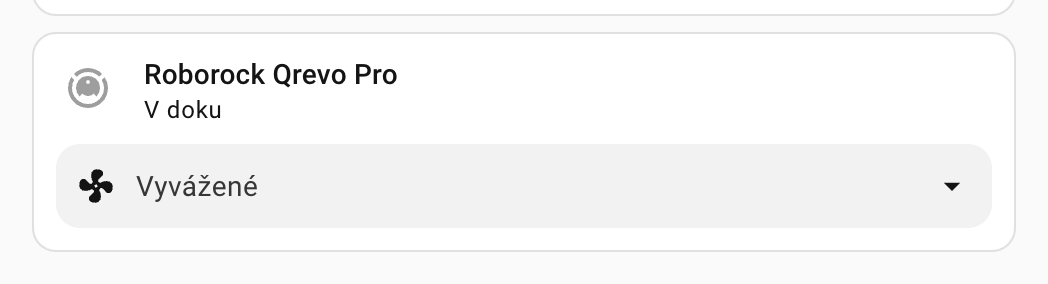
- Vacuum fan speed - switch between min, medium, high, and max right alongside the existing start, stop, and dock commands
- Target humidity - previously limited to humidifiers, it now also works with climate entities that support humidity control, using the step size your device reports instead of a fixed one
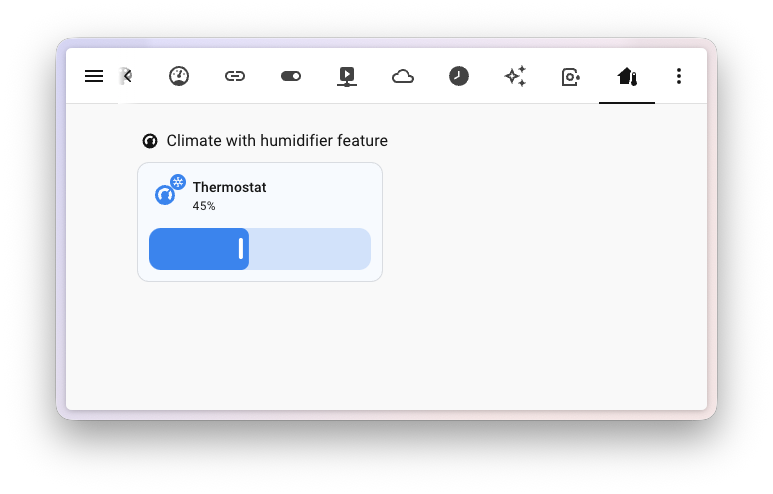
All three come with matching tile card suggestions, so Home Assistant offers them where they make sense.
One more fix to round it off: with the Feature position set to Inline, only the first feature used to show up and the rest were silently dropped. Now the first one sits next to the entity name as before, and the others appear below it in two columns:

New Sun Triggers: Golden Hour, Blue Hour, and Polar Night
Rebuilding automations around the sun has been a slow-burn project, and this release wraps it up. 2026.7 replaced the old, offset-heavy sun trigger with dedicated ones for sunrise, sunset, solar noon, solar midnight, dawn, dusk, and elevation changes. 2026.8 added a time-based offset to those, the same way the calendar trigger already works.
Now comes the last piece - the Sun integration gains four new conditions and eight matching triggers:
- Golden hour and blue hour - the warm and cool light either side of sunrise and sunset. Ideal for automations that match your lighting to the mood outside, or close the blinds before direct sun hits a room. Each can be limited to morning, evening, or either
- Midnight sun and polar night - the sun staying above the horizon for a full day around midsummer, or below it for a full day around midwinter. Both get their own condition plus start and end triggers
If you're just getting started with automations, I cover the basics in my introduction to automations.
Full documentation for the new set of triggers and conditions is still being written.
Charts You Can Listen To: Keyboard and Screen Reader Support
Accessibility isn't a one-off project in Home Assistant - it shows up release after release. Better color contrast and clearer buttons landed in 2025.8, clearer status indicators for people who can't rely on color alone in 2026.7. Now it's charts' turn.
Charts render straight to a single image - which means every data point on them was invisible to screen readers and unreachable by keyboard. If you rely on either, a chart in Home Assistant might as well not have been there at all.
That changes this release. Tab into a chart like any other element, the arrow keys walk you through it point by point, and a live region announces the time and value of each one to your screen reader. Press H at any point to bring up a list of every shortcut, styled to match your own theme.
And here's the best part: as you move through a chart, Home Assistant plays a short tone for each point, rising and falling with the data. You don't just hear the individual numbers - you hear the shape of the whole trend, like a little melody. 🎵
The tone plays for anyone navigating a chart by keyboard, not only screen reader users - there's no reliable way to know who needs it.
For now, line and bar charts, including the device breakdown on the Energy dashboard. More specialized ones - timelines, sankey diagrams, and network graphs - aren't covered yet.
Serial and MQTT Panels
Serial joins the other protocol panels - the same recognition infrared (2026.4) and radio frequency (2026.5) got earlier this year, before both gained dedicated panels in 2026.7. Once anything is using a serial port - whether that's a USB dongle like a Zigbee or Thread radio, or an app talking to one - the new Serial page lists it.
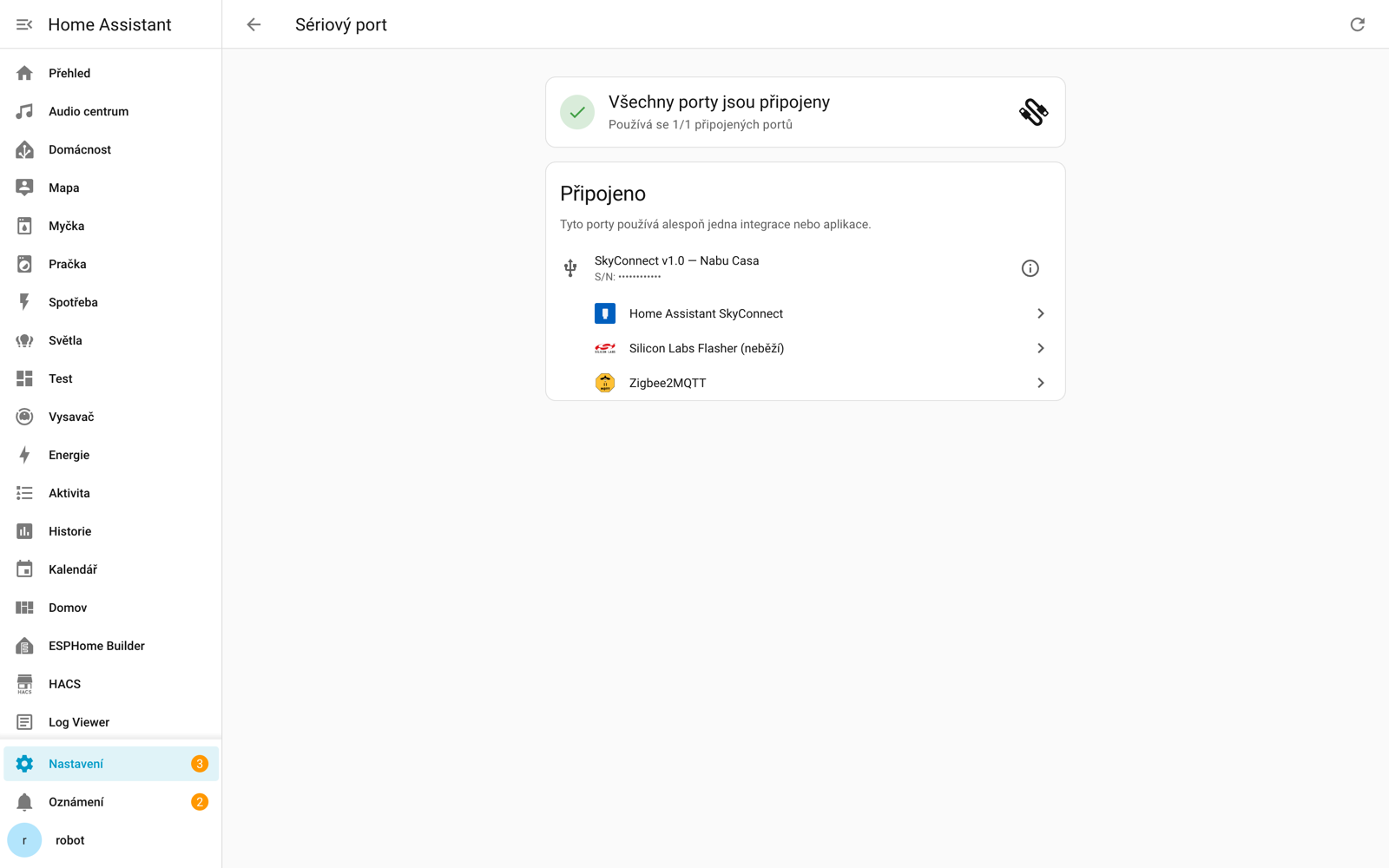
It splits them into three groups:
- Ports in use by an integration or app
- Ports connected but not used by anything
- Ports something expects but that aren't currently plugged in
A status banner at the top gives you the numbers at a glance, so if a stick has come loose or an app lost its connection, you see it the moment you open the page instead of hunting through logs.
MQTT got a settings page of its own too - sitting under Connectivity right alongside Serial and Bluetooth instead of hiding its tools behind the integration's options. A status banner shows whether the broker is online and how many devices it's found, with quick links to the devices and entities on your network - handy above all if you run Zigbee2MQTT. Discovery options and broker connection settings each get their own row instead of sharing one options flow. And a new Publish a packet tool lets you send a test message - topic, QoS, and retain flag included - straight from the page, with a code editor for the payload. The topic subscribe view also formats incoming messages as code, with a copy button.
Settings gained a Connectivity page that groups Matter, Zigbee, Z-Wave, KNX, MQTT, Thread, Bluetooth, Serial, Infrared, Radio frequency, Insteon, and Tags behind a single entry instead of listing each one directly in the menu. Every existing link keeps working.
How Full Is Your Network Storage (NAS)?
The Storage page in Settings has always shown which network shares you have connected - a NAS for backups or media - but not how full each one actually was. So nothing warned you before one quietly ran out of room.
Each active mount now gets a usage bar and a "{used} of {total} used" line:
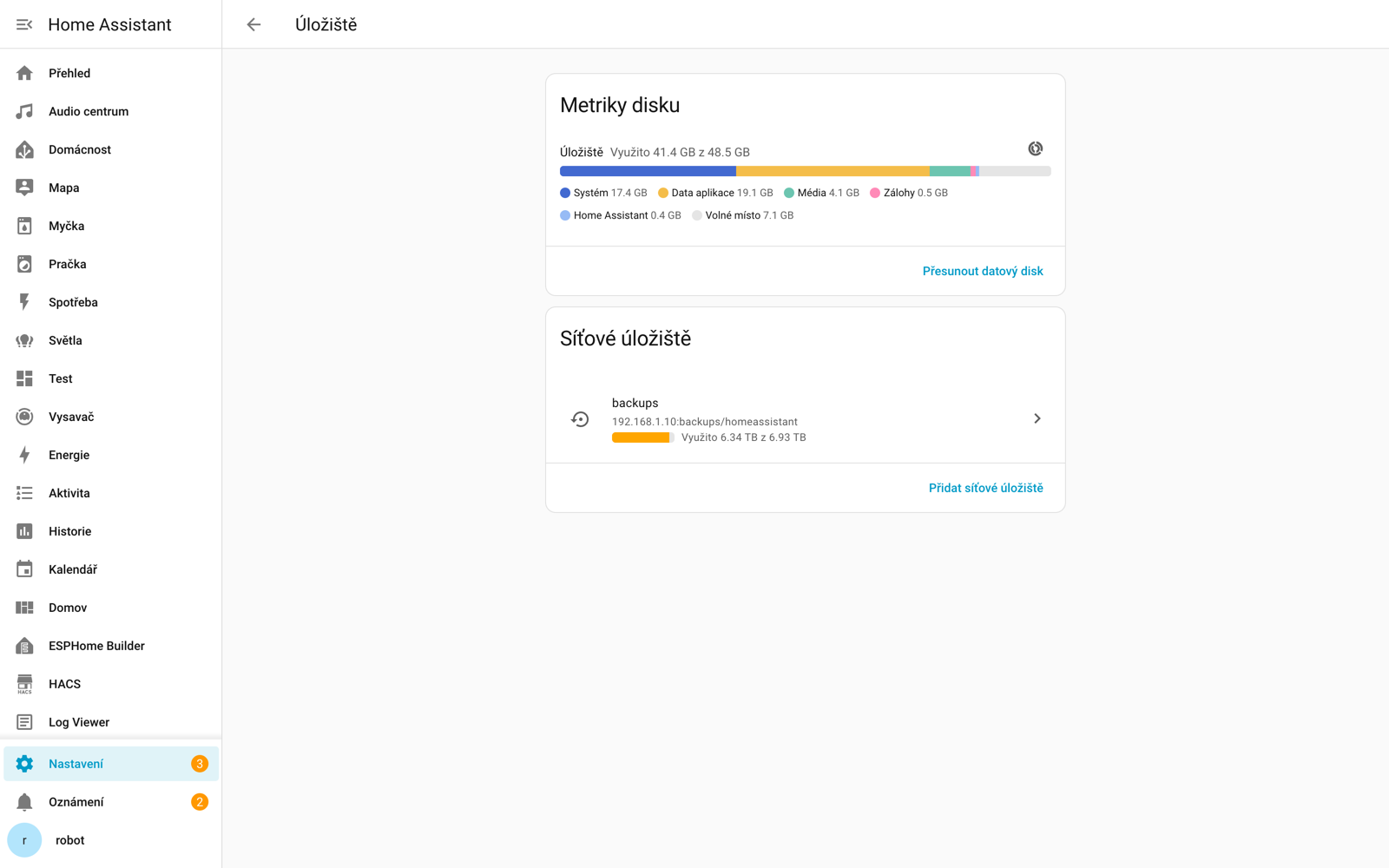
Rows appear immediately and each bar fills in as soon as its own request comes back, so one slow or unreachable share never holds up the rest of the list. The bar changes color as it fills: amber past 85% and red past 95%, so you get a heads-up before you actually run out of space. A mount that's currently unreachable simply shows no bar - it already gets its own warning treatment.
Other Improvements Across the System
- Templates got richer again - custom attribute templates were added to alarm control panel, button, cover, device tracker, fan, image, light, lock, number, select, switch, update, and weather entities; the
attributesoption is now fully templatable, and trigger-based template entities support a per-entityconditionsoption - Button triggers from helpers - the Button trigger now also fires from button helpers, not just physical device buttons
- Targets in automation traces - traces now show which entities, devices, and areas each step targeted, the same way the automation editor already does
- Cover speed - open, close, and set position actions on Cover gained an optional speed parameter
- Restart tells you what's running - the restart confirmation dialog now lists the automations and scripts currently running, updating live, instead of a vague warning
- Energy dashboard with device names - individual devices are now labeled with their device name, not just the bare entity name, so devices sharing a generic sensor name like Energy can be told apart
- Dashboard background from the UI - dashboards gained a Background tab in their detail editor, so you no longer need YAML for it
- Media search reaches further - searching the media browser now also reaches media players with their own library, such as Music Assistant, Sonos, Squeezebox, and Jellyfin, not only media sources
New Integrations
We welcome the following new integrations in this release:
- Besen - Besen EV chargers over Bluetooth Low Energy, using built-in Bluetooth or an ESPHome Bluetooth proxy; works with the BS20 and other Besen chargers using the same protocol
- Collection image - Turn a media source folder into a dynamic image entity; Home Assistant picks a random picture, so it works as a changing dashboard image or a view background
- Flow-it - Flow-it ventilation systems locally, with fan speed and preset modes (Auto, Boost) and automatic discovery
- Hot Spring - Hot Spring spas with the HotSpring Connected Spa Kit 2 module, over your local network (Platinum)
- ISEO Argo BLE - ISEO Argo Bluetooth smart locks, common on armored doors in Italy and Switzerland, syncing the access log into the logbook and managing users through actions
- LibreNMS - LibreNMS network monitoring; this initial release adds an online status binary sensor for each monitored device
- NexBlue - NexBlue EV chargers, read-only for now (charging state, power, session and lifetime energy, plus electrical and diagnostic values)
- Ridder HortiMaX Pro - Measurements from Ridder HortiMaX Pro greenhouse controllers (temperatures, humidity, vent and screen positions, irrigation volumes, energy use); deliberately read-only
- Samsung TV via ExLink - Samsung TVs through their RS-232 serial port (ExLink), via cable, USB adapter, or an ESPHome serial proxy; works with TVs that lack smart features or a network connection (Silver)
- Silla Prism - The Silla Prism EV wallbox over its local MQTT API; setup only needs the topic your Silla app already shows you
- Sofar Inverter Modbus - Sofar Solar inverters over Modbus TCP, directly or through a bridge; detects your model automatically and works with PV-only and hybrid inverters
- Specialized Turbo - Specialized Turbo e-bikes over Bluetooth Low Energy (TCU1 and TCX1 through TCX4) with detailed ride and battery telemetry
- Tonewinner - Tonewinner AV processors, receivers, and amps over RS-232, using a USB adapter or an ESPHome serial proxy (Silver)
There are also fifteen new virtual integrations handled by Midea: Ariston, Beverly, Bugu, Carrier, Colmo, Comfee, Inventor, Little Swan, Netsu, Olimpia Splendid, Pro Breeze, Rotenso, Toshiba Lifestyle, Vandelo, and Wahin.
Noteworthy Improvements to Existing Integrations
- Shelly - Cameras are now fully supported, with a camera platform, motion detection, and a privacy switch to disable the lens; the Wall Display XL gained its own motion sensor, and climate entities now report the correct heating and cooling status when a thermostat's relay is wired inverted
- UniFi Protect - Can now be set up with just an API key from your UniFi OS Console, no local user account required. This first usable piece of the public API migration covers the alarm panel, cameras with streams and snapshots, and lights; sensors, switches, events, and media browsing aren't available in that mode yet
- HomeKit Device (guide) - Duration, fault, and low battery sensors for more HomeKit accessories
- Midea - A big leap: new fan, humidifier, light, and switch controls, select and number entities to configure your appliance, buttons for common actions, and a full dust filter alert binary sensor
- Reolink - Floodlight on/off schedule times, a button to synchronize the camera's clock, an anti-flicker frequency select, and the ability to enable or disable the tamper alarm
- Roborock - Dock controls (mop washing, drying, emptying) brought to V1 vacuums
- Google Gemini - A thinking budget option for Gemini 2.5 models and a thinking level option for Gemini 3
- KNX - Weather and select entities can be created directly from the KNX panel, YAML entities can be given an explicit unique ID, and YAML entities can now be assigned to devices
- MikroTik - Switches to turn Ethernet and Wi-Fi interfaces on or off, a PoE output mode select, an interface connectivity binary sensor, and more sensors
- LG webOS TV - A switch to turn off just the screen while keeping the sound running
- SwitchBot Cloud - Support for Permanent Outdoor Lights string lighting and the Curtain4 curtain motor
- Tado - Choose which heating circuit serves a zone, handy where underfloor heating and radiators mix
- Home Connect - New event sensors (short and long presses of the Favorite button on hobs and hoods) and a setpoint temperature option for air conditioners
- Subaru - Binary sensors for doors, windows, and the hood or tailgate, per-door lock status, EV plug and charging state, and vehicle health warning lights
- Teslemetry - A rear defroster binary sensor and a cover entity for the Cybertruck's tonneau
- IOmeter - Entities for three-phase electricity meters, so homes with a three-phase connection get accurate per-phase readings
- OpenEVSE - Switches for solar PV divert, the current shaper, and a manual override to force charging on or off
- Proxmox VE - A button to pause a VM
- HomematicIP Cloud - A carbon dioxide sensor for supported devices
- Environment Canada - Smoothed radar images and a short-term forecast extension
- Mealie - Actions to update and delete mealplan entries
- Portainer - A Docker event entity, so container lifecycle changes arrive immediately
- Transmission - A sensor for available disk space
- Tuya - Support for the HCDD category, covering chasing tape lights
- Imou - A select for night vision mode and volume, plus a binary sensor for door and window contacts
- Vistapool - Time entities for the three filtration schedule intervals
- Watergate - A switch for the Sonic device's automatic leak shut-off
- Lyngdorf - Rounding out its debut: number entities for lip sync and channel trims, a remote entity for the on-screen menus, RoomPerfect position and voicing selects, active input and streaming source sensors, and now-playing info with transport controls
Integration Quality, New UI Setup, and Removals
Five integrations moved up the quality scale. Google Health, LED Infrared, and WiiM reached Platinum, BleBox devices reached Gold, and Ouman EH-800 reached Silver.
Now available to set up from the UI: Flexit, Netio, and Remember The Milk.
Just one integration was removed - VLC. It required direct access to your system's audio hardware, which only worked on the deprecated Home Assistant Core installation method. The separate VLC via Telnet integration remains available on any installation type.
Backward-Incompatible Changes
This release contains a few changes that may affect your existing configurations:
- Installing updates requires an administrator - installing an update, skipping one, and clearing a skipped update are now restricted to admin accounts. Automations are not affected, because they run without a user context. A script, however, runs in the context of whoever started it - so a script that installs an update now fails when a non-admin starts it. Trigger it from an automation instead, or start it as an admin
- LLM tool names are now prefixed - tool names now carry the domain of the integration offering them:
GetLiveContext→homeassistant__GetLiveContext,HassTurnOn→intent__HassTurnOn. If you have a custom prompt that names a tool directly, update it to the new prefixed name - Z-Wave JS - the actions managing lock users and credentials (
set_user,delete_user,delete_all_users,set_credential,delete_credential,delete_all_credentials) now require an administrator account - Vacuums - the deprecated
battery_levelproperty has been removed from the base vacuum entity. All core integrations were migrated back in 2026.8; if a custom integration still sets it, it no longer reports a battery level - add a separate battery sensor - Persistent Notification - updating a notification that already exists now triggers an
update_typeofupdatedinstead ofadded. If you have an automation triggering onaddedto catch every new or changed notification, addupdatedto the list of types - UniFi Protect - two changes: the smart detection switches (for example Detections: Person, Detections: Vehicle, and the audio alarm toggles) are no longer hidden while recording is disabled, and UniFi Protect 7.2.105 or newer is now required - on an older version the integration stops setting up and tells you to update
- KNX - KNX exposes no longer send an entity's first value to the bus. The first value is now adopted locally, stays available for read requests and periodic sending, and later changes are sent as before. To send it right away, turn on Send on initialization for the expose (or
send_on_init: truein YAML) - Flexit Nordic (BACnet) - the deprecated fireplace mode switch entity has been removed. Instead of
switch.<device>_fireplace_mode, use theclimate.set_preset_modeaction on the Flexit climate entity withpreset_mode: fireplace
Full details are in the official blog post.
More Information
Most screenshots in this article come from our own Home Assistant 2026.9 instance. The images for Home Assistant Cloud, the Security dashboard, the Matter network map, target humidity, and the header image are taken from the official Home Assistant blog, licensed under CC BY-NC-SA 4.0.
- The English blog post with full details
- Full changelog for Home Assistant Core 2026.9
- Developer blog: modernizing Modbus in Home Assistant
Release Party Video
Did this guide help you?
I write these guides in my spare time and keep them up to date. If one saved you time, you can chip in.
One-off, by card or Apple Pay. You can change the amount on the next page.
Would rather not send money? Buy the parts through my product links. The price is the same for you and it helps too.