Xiaomi Miio (WiFi products)
Xiaomi offers a wide range of smart home devices - robotic vacuums, air purifiers, fans, etc. - that can be integrated into Home Assistant using the Xiaomi Miio integration.
I tested the integration process on two products:
-
Xiaomi Roborock S50 (S5) vacuum cleaner, which I have had since 2018 and it still works great. Today, very similar vacuums are available at much lower prices, or for a similar price, you can buy a vacuum with a base that can "dump" the dirt.
Roborock Q8 Max White
 WiFi
WiFi
Xiaomi Robot Vacuum S20 White
- WiFi
Currently not available for purchase in this countryRoborock Qrevo S white
- WiFi
Integration of new Roborock modelsNewer models - approximately from the Roborock S7 model - may no longer work in the Xiaomi app or may not have all functions available. In such a case, add the vacuum to the Roborock app and use the Roborock integration for Home Assistant.
-
Xiaomi Mi Purifier 2S air purifier, which I have also had since 2018. In addition to air purification, it provides information about temperature, humidity, and PM2.5 particulate matter in the room.
Xiaomi Smart Air Purifier 4
- WiFi
Currently not available for purchase in this countryXiaomi Smart Air Purifier 4 Pro
- WiFi
Currently not available for purchase in this countryXiaomi Smart Air Purifier 4 Compact
- WiFi
Currently not available for purchase in this country
Xiaomi Mi Home App
Not only for integration into HA but also for usage, you will need to install the Xiaomi Mi Home app on your mobile phone.


Integrating Xiaomi into HA
-
Adding the Xiaomi Miio Integration:
-
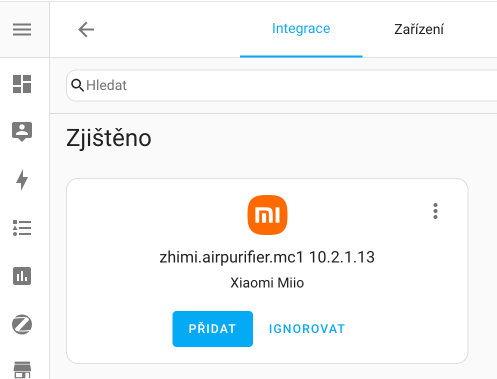
Automatically - if the Xiaomi device is on the same network as Home Assistant, it should be found automatically using the auto-discovery feature. You will find it in the Integrations section under Discovered, for example, the mentioned air purifier in my case:
-
Manually:
- Go to the Settings -> Devices & Services menu and make sure you are on the Integrations tab.
- Click on Add Integration and search for Xiaomi Miio.
Or click on:

-
-
Obtaining Token Using Xiaomi Cloud Tokens Extractor
Login Method ChangeRecently, adding the integration using direct login with username and password to Xiaomi cloud no longer works. You need to use Xiaomi Cloud Tokens Extractor to obtain tokens for your devices.
-
Download Xiaomi Cloud Tokens Extractor from the official repository
-
Run the tool and select login using QR code (press
q) -
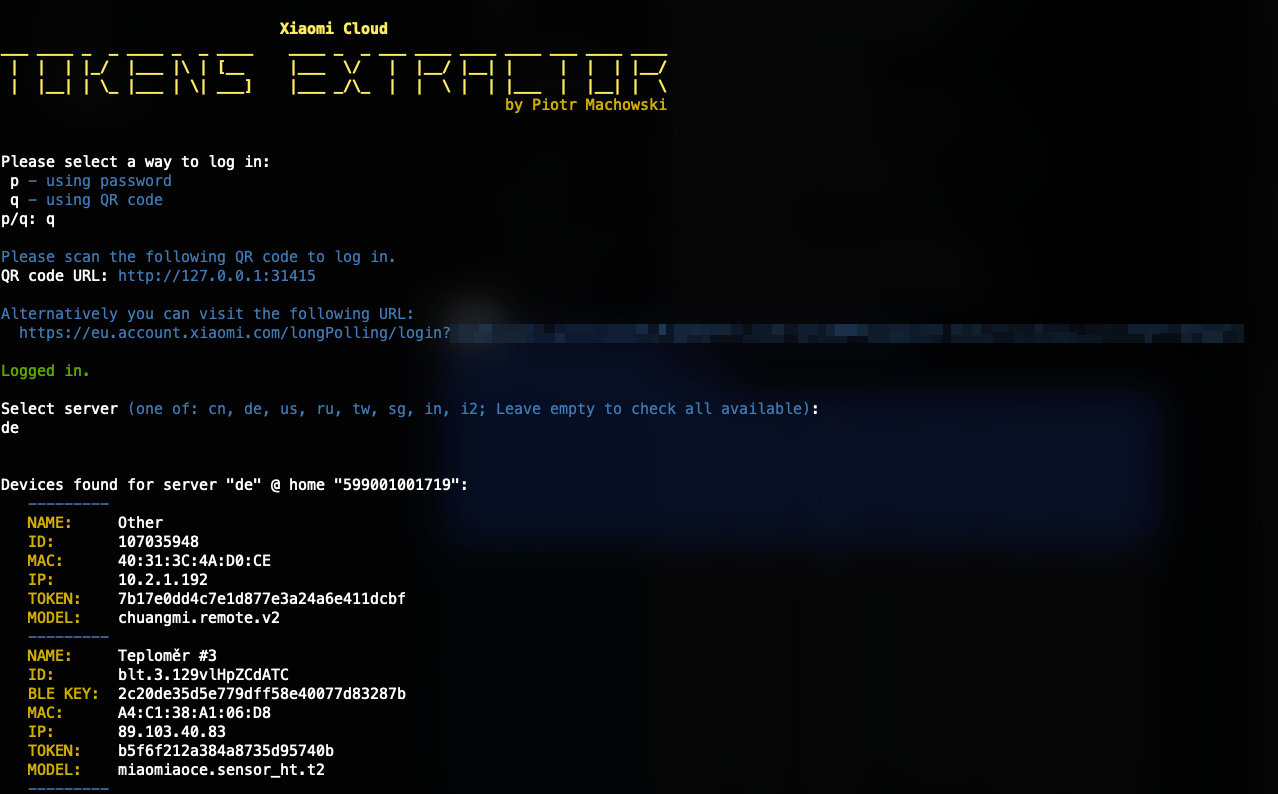
The tool will generate a QR code, which you scan in the Mi Home app on your phone or open the displayed link in a browser and log in:
-
After successful login, select the server - for most products in Europe enter
de, for Chinese productscn: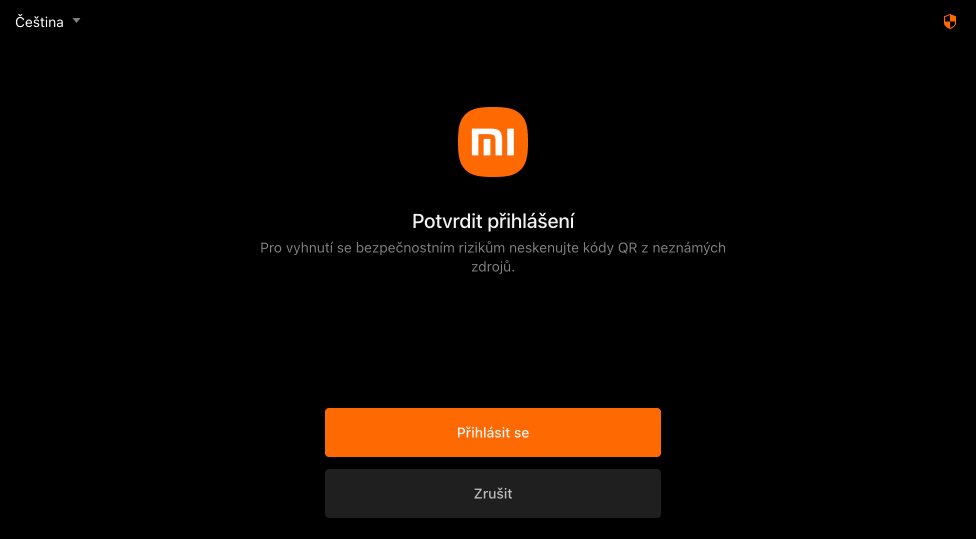
-
The tool will display a list of all your devices including their tokens, IP addresses, and other information:
Logged in.Select server (one of: cn, de, us, ru, tw, sg, in, i2; Leave empty to check all available):deDevices found for server "de" @ home "599001001719":---------NAME: Xiaomi VacuumID: 123456789MAC: A1:B2:C3:D4:E5:F6IP: 10.2.1.15TOKEN: a1b2c3d4e5f6g7h8i9j0k1l2m3n4o5p6MODEL: roborock.vacuum.s5---------NAME: Air PurifierID: 987654321MAC: F6:E5:D4:C3:B2:A1IP: 10.2.1.20TOKEN: p6o5n4m3l2k1j0i9h8g7f6e5d4c3b2a1MODEL: zhimi.airpurifier.mc1--------- -
Note down the TOKEN of your device - you will need it to add to Home Assistant
-
-
Adding Device to Home Assistant Using Token
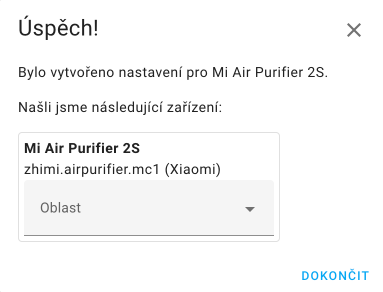
- If you added Xiaomi Miio using auto discovery, there is no need to fill in the product and you can directly set the area
-
Otherwise, when adding manually, enter:
- IP address of the device
- TOKEN obtained from Tokens Extractor
- Model of the device (optional, HA will try to detect it automatically)
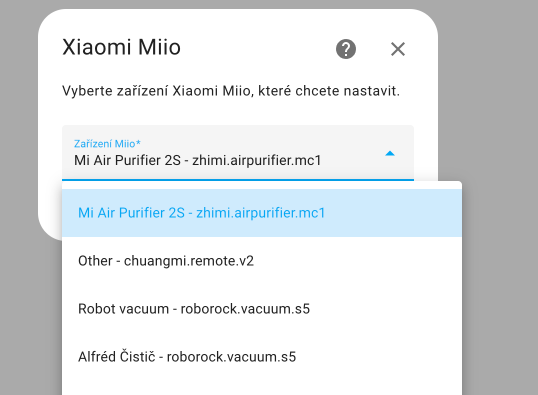
-
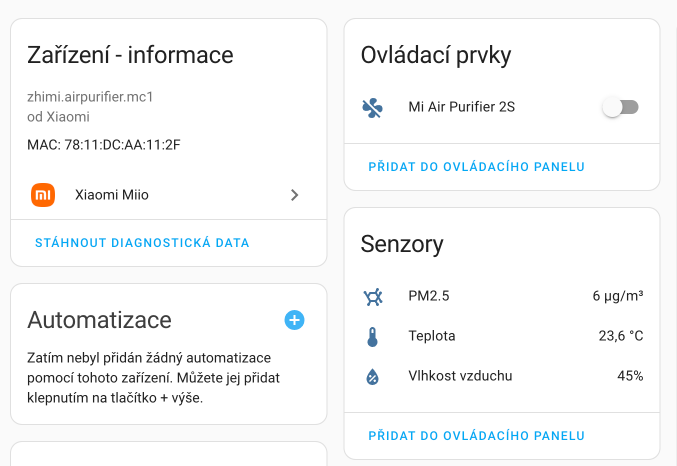
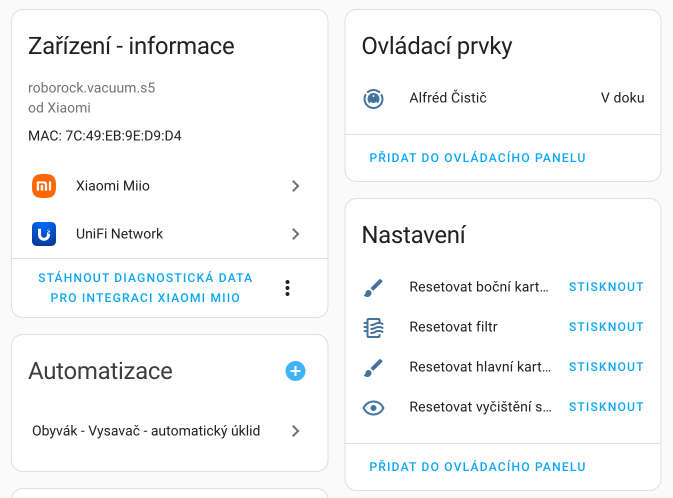
New Entities:
Depending on the product type, you should find several new entities for the device, which can be used to control the device and possibly obtain sensor data - for example, temperature, humidity for the air purifier, and many sensors for cleaning for the robotic vacuum.
Did this guide help you?
I write these guides in my spare time and keep them up to date. If one saved you time, you can chip in.
One-off, by card or Apple Pay. You can change the amount on the next page.
Would rather not send money? Buy the parts through my product links. The price is the same for you and it helps too.