Bose SoundTouch – Home Assistant Integration and the Cloud Services Shutdown
Integration of smart speakers SoundTouch from Bose, one of the leading brands in audio equipment.
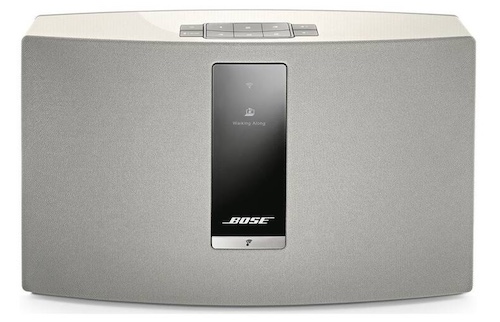
I tested the entire integration process with the Bose SoundTouch 20 product, which is no longer sold. Its certain successor is the Bose Smart Speaker 500, which has also been discontinued. I could not find out exactly which products the integration supports.
On May 6, 2026, Bose shut down the cloud servers for the SoundTouch line. The speakers still play, but features that depended on Bose servers stopped working – including the preset buttons 1–6. See the End of Cloud Services section for details and your options (I recommend Music Assistant).
Cloud Services Shutdown: Why the Presets and the App Stopped Working
Bose shut down the SoundTouch cloud servers on May 6, 2026 (the original February 18, 2026 deadline was postponed under pressure from customers). The problem lies in the architecture of these speakers – for example, the preset buttons don't store a direct link to what they should play; instead, every press queries the Bose servers. Once those were switched off, the buttons stopped working, even though they feel like a purely "local" feature.
What stopped working:
- The physical preset buttons 1–6 – and with them their simulation via the
media_player.play_mediaservice described below - Integrated music services – TuneIn, Pandora, iHeartRadio and others
- Music browsing and search in the SoundTouch app
What still works:
- Bluetooth and the AUX input
- AirPlay and Spotify Connect (on models that support them)
- The speaker's local API – the Home Assistant integration described in this article works unchanged (volume control, playback, player state)
Recommended Solution: Music Assistant
In my opinion, the best replacement for the discontinued Bose services is Music Assistant – an open-source music server for Home Assistant that brings your streaming services (Spotify, Apple Music, Tidal…), internet radio, and local files together in one place, and can stream to SoundTouch speakers as well (via DLNA/UPnP, which remains functional on them). You get back everything the SoundTouch app used to do, and much more – including multi-room playback. You'll find a detailed guide in the dedicated Music Assistant article.
Other Options
- AfterTouch – an open-source toolkit that emulates the Bose servers locally (e.g., in Docker on a Raspberry Pi or NAS) and can restore the preset buttons. On most models, including the SoundTouch 20, it works without any hardware modification, using the device's diagnostic telnet port. See the Restoring Bose SoundTouch functionality article, which this section is based on, for details.
- ÜberBöse – a similar project with native Spotify login support and its own Android app.
- Bluetooth or AUX – a fallback option without any smart features.
The integration uses the Python library libsoundtouch, which has its last update on GitHub 6 years ago, so it is definitely not new, and it is possible that due to this, the integration will eventually disappear from HomeAssistant.
Personally, I prefer the direction taken by Sonos and recommend checking out their products as well.
Bose SoundTouch App
Not only for integration into HA but also for usage, you will need to install the Bose SoundTouch app on your mobile phone.

Integrating Bose into HA
-
Adding the Bose Integration:
-
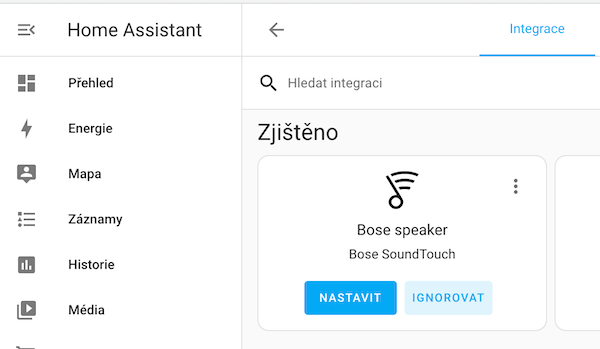
Automatically - if the Bose SoundTouch device is on the same network as Home Assistant, it should be found automatically using the auto-discovery feature and you will find it in the Integrations section under Discovered:
-
Manually:
- Go to the Settings -> Devices & Services menu and make sure you are on the Integrations tab.
- Click on Add Integration and search for Bose SoundTouch.
or click on:

-
-
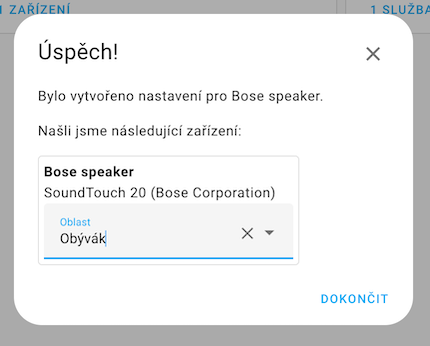
Setting up Bose: Click on the setup button and if everything is fine, you should see the Success! screen, where you can also set the area where the device is located. The specific device type is also visible in the dialog.
-
New Entity:
You should now have one new entity of type
media_playeravailable, which can be used, for example, in the media-control UI.
Besides the official integration, there is also an actively developed community integration called SoundTouchPlus, which you can install via HACS. Compared to the official integration, it adds many extra features – playing TTS messages and arbitrary URLs, saving and restoring the player state (snapshot), multi-room zone management, browsing presets and recently played content, or simulating remote control key presses. Moreover, most of the communication happens locally, directly with the device, so the integration keeps working even after the Bose server shutdown.
Services
Playing Music
By calling the media_player.play_media service, you can start playing one of the six presets, simulating pressing one of the physical buttons on the device.
Since the Bose server shutdown, the presets no longer work – the only way to bring them back is to replace the Bose servers locally, for example with the AfterTouch toolkit.
# Playing from a preset
- service: media_player.play_media
  target:
    entity_id: media_player.bose_speaker
  data:
    media_content_id: 1 # 1-6
    media_content_type: PLAYLIST
Setting Volume
By calling the media_player.volume_set service, you can set the volume in the range of 0 .. 1, where 0 is silent and 1 is the maximum volume.
# Setting volume
- service: media_player.volume_set
  target:
    entity_id: media_player.bose_speaker
  data:
    volume_level: 0.25 # setting volume to a quarter of the maximum
Stopping Playback
By calling the media_player.media_stop service, you can immediately stop the music playback.
# Stopping playback
- service: media_player.media_stop
  target:
    entity_id: media_player.bose_speaker
UI Control in Lovelace
Mini Media Player
I recommend using Mini Media Player from the HACS store.
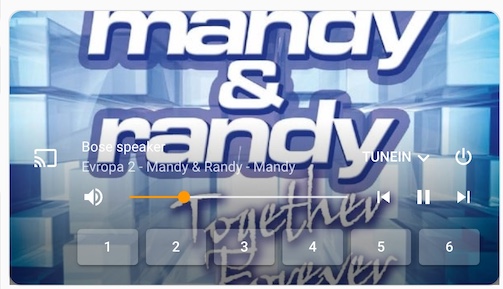
It has many options, and in the case of the Bose speaker, you can easily add 6 buttons to the UI just like you have on the speaker.
In the Lovelace UI settings, you need to switch to manual YAML, as only basic options are available in the UI. For a full list of options, check out the repository.
# Example configuration for Bose speaker
type: custom:mini-media-player
entity: media_player.bose_speaker
group: false
volume_stateless: false
toggle_power: true
artwork: full-cover
shortcuts:
  columns: 6
  buttons:
    - data:
        entity_id: media_player.bose_speaker
        media_content_id: 1
        media_content_type: PLAYLIST
      id: media_player.play_media
      name: 1
      type: service
    - data:
        entity_id: media_player.bose_speaker
        media_content_id: 2
        media_content_type: PLAYLIST
      id: media_player.play_media
      name: 2
      type: service
    - data:
        entity_id: media_player.bose_speaker
        media_content_id: 3
        media_content_type: PLAYLIST
      id: media_player.play_media
      name: 3
      type: service
    - data:
        entity_id: media_player.bose_speaker
        media_content_id: 3
        media_content_type: PLAYLIST
      id: media_player.play_media
      name: 4
      type: service
    - data:
        entity_id: media_player.bose_speaker
        media_content_id: 3
        media_content_type: PLAYLIST
      id: media_player.play_media
      name: 5
      type: service
    - data:
        entity_id: media_player.bose_speaker
        media_content_id: 3
        media_content_type: PLAYLIST
      id: media_player.play_media
      name: 6
      type: service
Did this guide help you?
I write these guides in my spare time and keep them up to date. If one saved you time, you can chip in.
One-off, by card or Apple Pay. You can change the amount on the next page.
Would rather not send money? Buy the parts through my product links. The price is the same for you and it helps too.