Sonoff NSPanel - eWelink or ESPHome
The Sonoff NSPanel EU represents a smart control panel with an integrated touch display at a very reasonable price.


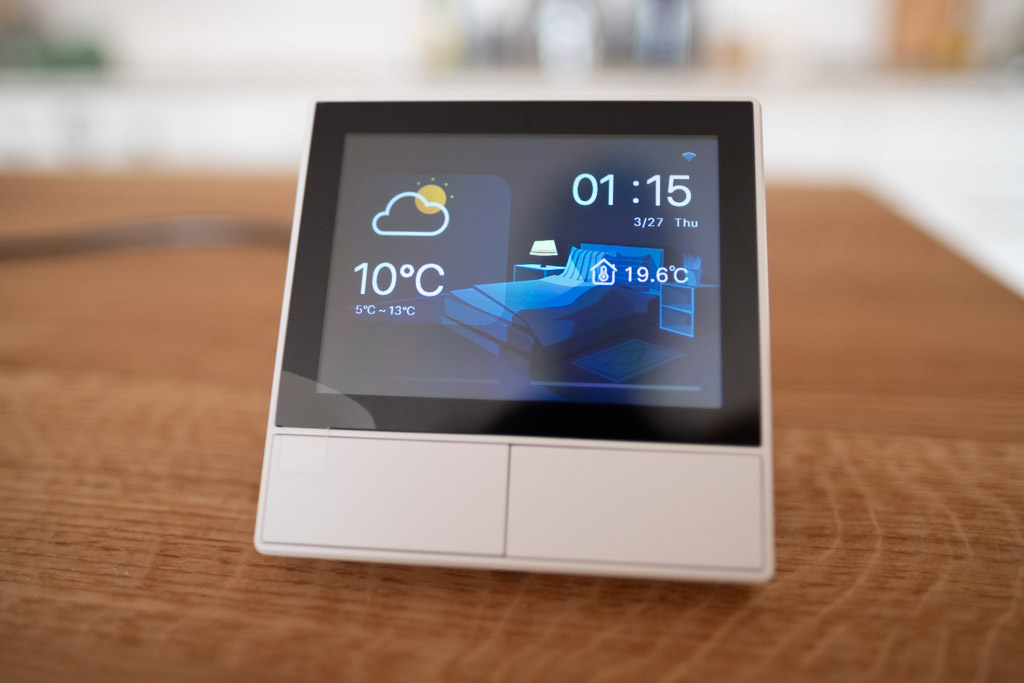
Sonoff NSPanel EU
- Display: 3.5" Nextion touch display
- Buttons: 2x physical buttons below display
- Relays: 2x relay for 240V
- Sensors: Temperature sensor
- Connectivity: Wi-Fi 2.4GHz
- Chip: ESP32
- Dimensions: 8.6 x 8.6 x 4.2 cm
- Color: Gray / White
eWeLink Application
Out of the box, the device comes with firmware that uses the eWeLink cloud service. Adding the NSPanel is done through the eWeLink mobile app. After pairing, the panel shows a user interface as seen in the image above.


With the stock firmware, you can control relays directly with the bottom buttons, view internal temperature from the panel's sensor, and see outdoor weather information, which updates quite sporadically (seemed like 4 times a day to me).
You can add control of other devices added to eWeLink, but you cannot control devices outside this cloud, which is the biggest drawback for me.
eWeLink Integration
eWeLink can be further integrated with Google Assistant, Alexa, SmartThings, or Philips Hue - the basic foundation of today's systems. Additionally, there's a Home Assistant integration SonoffLAN, which you can install from HACS.

Thanks to this integration, you'll have the ability to control both relays in Home Assistant, read temperature information, and see a few other details.
What you CAN do with eWeLink
- ✅ Control relays directly from the panel
- ✅ Display temperature from internal sensor
- ✅ View basic weather information
- ✅ Add other eWeLink devices
What you CANNOT do
- ❌ Control devices outside eWeLink cloud
- ❌ Deep Home Assistant integration
- ❌ Custom UI or scenes
- ❌ Offline functionality during internet outage
Alternative Firmware
Since the NSPanel contains an ESP32 chip, several alternative firmware options have emerged that expand its capabilities and overcome the limitations of the original eWeLink firmware. Let's look at the three most significant projects (they also have the most stars on GitHub):
NSPanelManager
url: github.com/NSPManager/NSPanelManager
Key Features
- Allows loading entities from Home Assistant and OpenHAB, expanding smart home control possibilities.
- Can function standalone without needing to connect to other systems.
- Great emphasis on easy configuration through web interface, enabling intuitive panel function setup.
- Support for connecting multiple NSPanels together for synchronized control.
Who is it for
- Ideal for users who don't need complex integration with Home Assistant or other smart home systems.
- Suitable for those who prefer simple solutions with basic customization options.
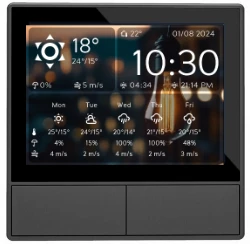
nspanel-lovelace-ui (Tasmota)
url: github.com/joBr99/nspanel-lovelace-ui
Key Features
- Uses Tasmota as base firmware, ensuring stability and flexibility when communicating via MQTT.
- Offers a user interface inspired by Home Assistant's Lovelace UI – allows displaying and controlling a wide range of devices (lights, sensors, thermostats, alarms).
- Configuration is done via YAML files, providing a high degree of customization without needing to modify source code.
- Localization support for over 30 languages ensures availability for users worldwide.
Who is it for
- For advanced Home Assistant users who want to fully customize the appearance and functions of NSPanel.
- Ideal for those with YAML configuration experience looking for a flexible solution.

NSPanel_HA_Blueprint (ESPHome)
url: github.com/Blackymas/NSPanel_HA_Blueprint
Key Features
- Built on ESPHome, which is now part of the Home Assistant team – guarantees deep integration and long-term support.
- Offers direct Home Assistant integration without needing external tools or services.
- Support for Bluetooth Proxy which enables connecting BLE sensors directly to the panel.
- Simple setup via Blueprints in Home Assistant – configuration happens directly in the system's user interface.
Who is it for
- For Home Assistant users looking for easy setup and deep NSPanel integration into their system.
- Ideal choice for those who want to use advanced features like BLE or OTA updates.

Which variant to choose?
Each of these firmware options has its advantages. If you're unsure, here's a quick summary:
- NSPanelManager - simple installation, works even without Home Assistant
- nspanel-lovelace-ui - maximum control via YAML, requires advanced knowledge
- NSPanel_HA_Blueprint - best Home Assistant integration, active development
In this article, we'll focus on NSPanel_HA_Blueprint (ESPHome), which I consider the best solution for most Home Assistant users. It offers easy installation, deep integration, and active community development.
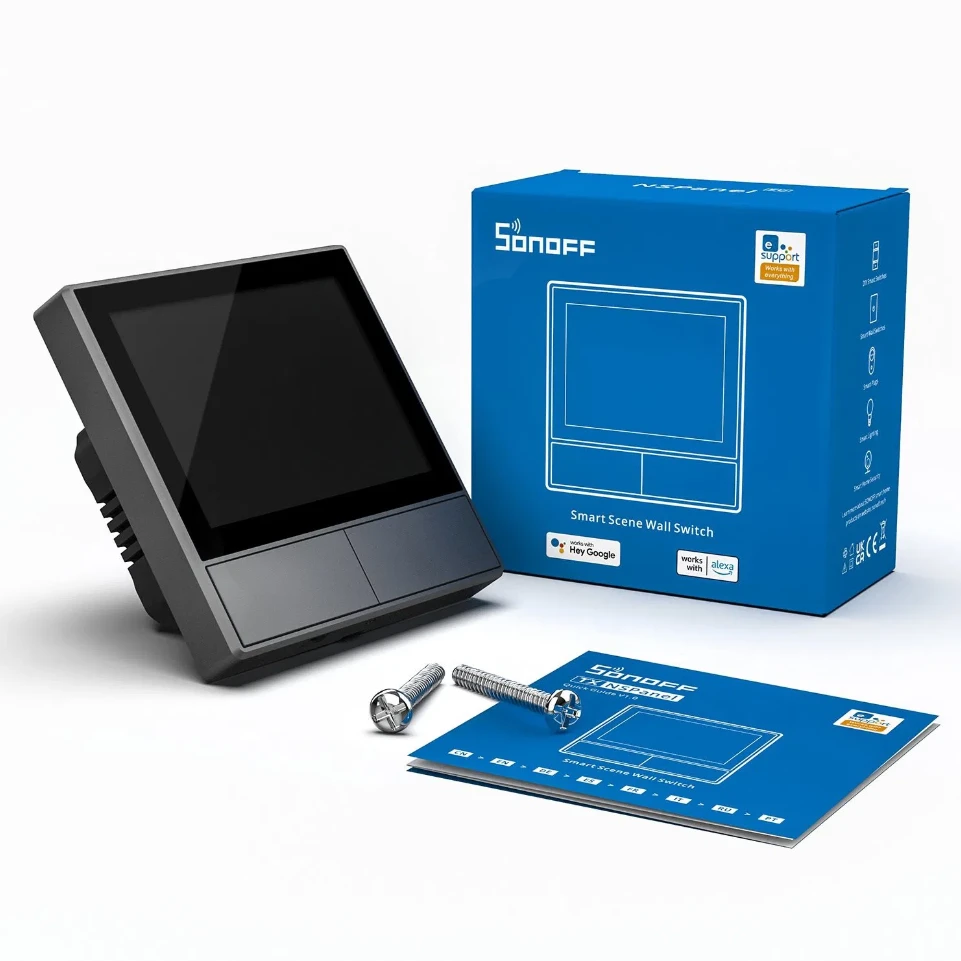
Sonoff NSPanel EU, Gray
Smart control panel with integrated touchscreen display.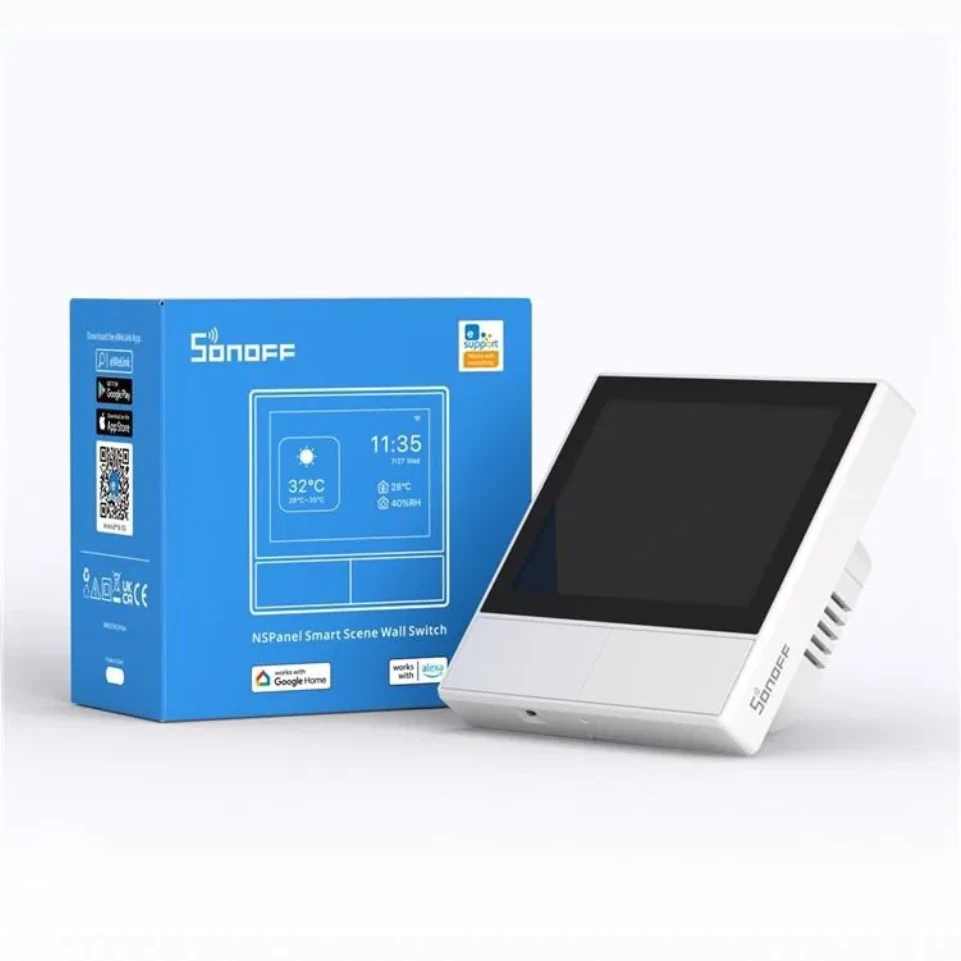
Sonoff NSPanel EU, White
Smart control panel with integrated touchscreen display.
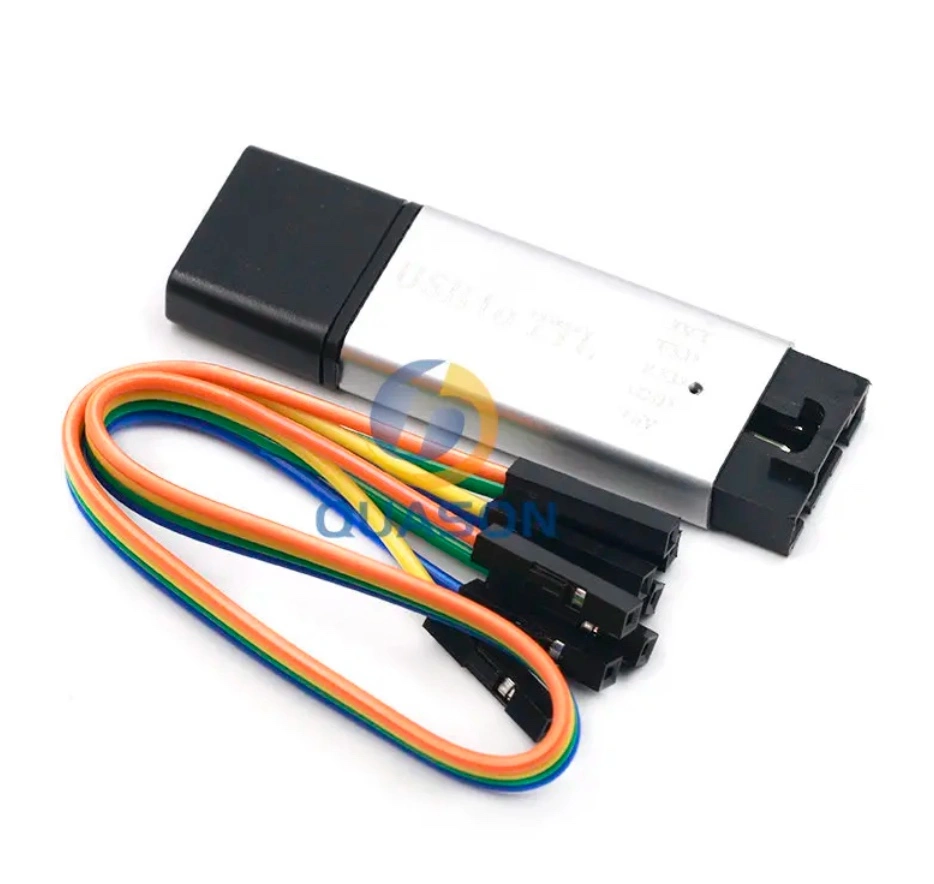
CP2102 USB 2.0 to TTL UART Module
USB adapter for firmware upload (3.3V / 5.0V).What You'll Need
Before we begin the installation, prepare the following:
Hardware
- Sonoff NSPanel (obviously 😊)
- USB-TTL adapter with CP2102 or CH340 chip (see product below)
- Jumper wires Female-to-Female type (minimum 4, ideally 5)
Software
- Installed Home Assistant with ESPHome addon
- Computer with web browser (Chrome or Edge - for Web Serial API)
If you don't have ESPHome installed yet, check out my article about ESPHome.
Before any manipulation with the panel, disconnect 230V power! We're working with 3.3V logic, but safety first.
Preparing NSPanel for Flashing
Before we upload the new firmware, we need to open the NSPanel and connect a USB-TTL adapter. Don't worry, it's not as complicated as it sounds.
Opening the Panel
- Unclip the panel from the mounting base
- Unscrew 2 screws at the bottom of the plastic cover
- Lift the plastic cover
- You'll find the pinout for serial communication labeled TX, RX, GND, 3V3 (and optionally GPIO0)
For most flashing purposes, 4 pins are sufficient (TX, RX, GND, 3V3). The GPIO0 pin can be useful for manual boot mode switching, but in the case of NSPanel, a button is used (see next step).
Connecting to USB-TTL Adapter
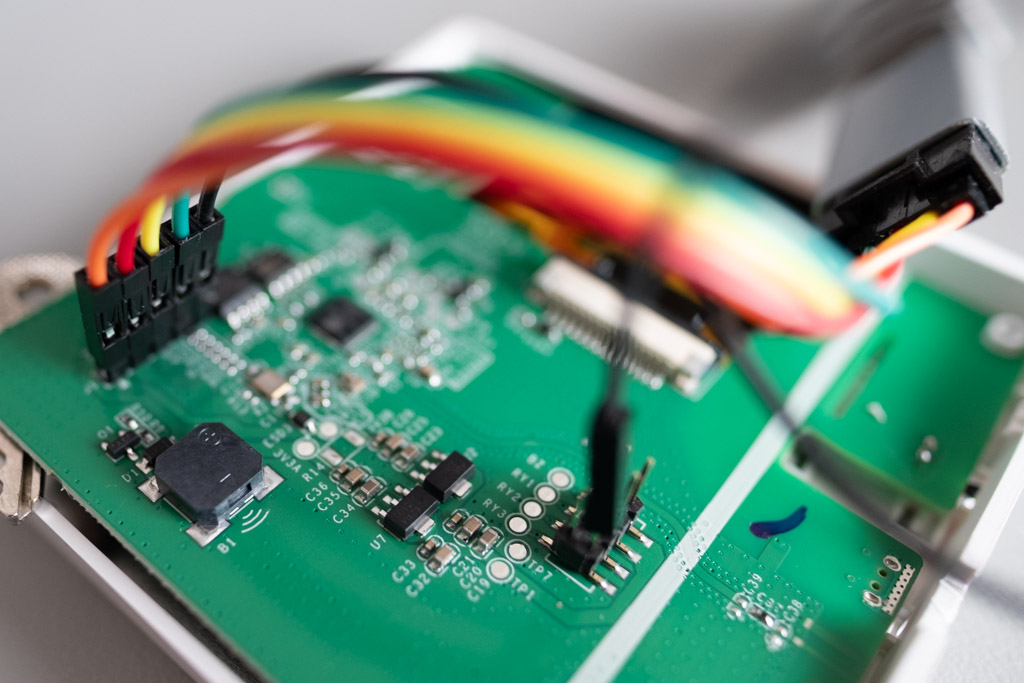
Connect the cables as follows:
| NSPanel | USB-TTL Adapter |
|---|---|
| TX | RX |
| RX | TX |
| GND | GND |
| 3V3 | 3V3 |
TX from the panel goes to RX on the adapter and vice versa!
Entering Bootloader Mode
- Disconnect NSPanel from 230V power
- Press and hold the left button (below the display)
- While holding the button, connect the USB-TTL adapter to your computer
- Wait 2 seconds and release the button
The panel is now in bootloader mode and ready for firmware upload.
Installing ESPHome Firmware
Now comes the fun part - uploading custom firmware! We'll use the ESPHome Web tool, which simplifies the entire process.
Step 1: Web Flashing
- Open your browser (Chrome or Edge) and go to web.esphome.io
- Click Connect
- Select your USB-TTL adapter from the menu
- Click Install
- Choose the Prepare for first use option
If the adapter doesn't appear, check that you have the cables connected correctly and that the panel is in bootloader mode.
Step 2: Wi-Fi Configuration
After successfully uploading the basic firmware, the tool will prompt you to set up Wi-Fi:
- Enter your Wi-Fi network name (SSID)
- Enter the password
- The panel will automatically connect to the network
Step 3: First Boot
After successful flashing:
- Disconnect the USB-TTL adapter (including 3.3V power!)
- Reassemble the NSPanel
- Connect to 230V power
- The panel will boot with the default ESPHome UI
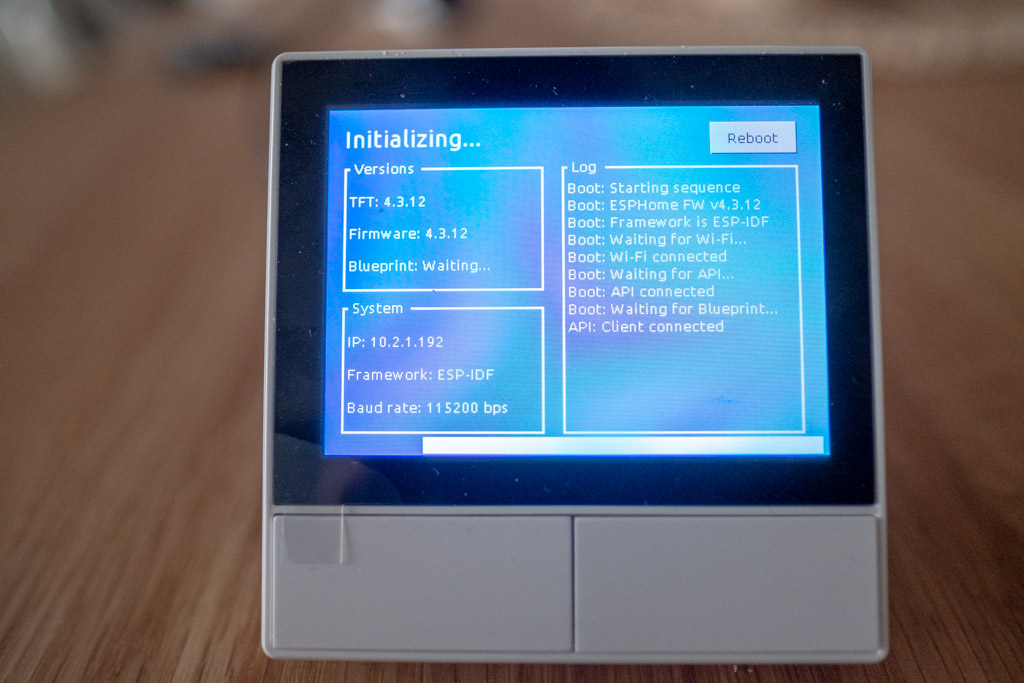
After flashing, you MUST disconnect the 3.3V power from the USB-TTL adapter! The panel needs 230V or 5V power from the header for normal operation.
🎉 Congratulations! You have ESPHome firmware installed. Now let's connect it to Home Assistant.
Integrating into Home Assistant
Automatic Detection
Home Assistant should automatically detect the NSPanel:
- Open Settings → Devices & Services
- In the Discovered section, the NSPanel should appear
- Click Configure
- Enter the API key (if required)
- Confirm addition
Manual Addition
If automatic detection doesn't work:
- Settings → Devices & Services
- Click Add Integration
- Search for ESPHome
- Enter the NSPanel IP address
- Enter port:
6053 - Confirm
Check your router or in ESPHome Web after connecting via USB.
Uploading TFT Firmware for the Display
The NSPanel display (Nextion) has its own firmware that needs to be uploaded separately. Since newer Blueprint versions, this process is significantly simpler:
Automatic Upload (Recommended)
- Open your NSPanel's page in Home Assistant (Settings → Devices & Services → ESPHome)
- In the Configuration section, you'll find two controls:
- "Update TFT display - Model" - expand and select your model:
- NSPanel EU - for European model
- NSPanel US - for American model (portrait)
- NSPanel US Landscape - for American model in landscape orientation
- Variants with (CJK languages) for Chinese/Japanese/Korean
- "Update TFT display" - after selecting the model, press this button
- "Update TFT display - Model" - expand and select your model:
- ESPHome will automatically download the correct TFT file from GitHub and start uploading to the display
- A progress bar with a black background will appear on the display
- Transfer takes 10-20 minutes
ESPHome automatically selects the correct TFT file version based on your chosen model and downloads it directly from GitHub releases. You don't need to download anything manually!
ESPHome will automatically retry several times with different parameters. Wait up to a minute for the transfer to start. If it still doesn't work, try restarting the panel.
Manual Upload (Only if Automatic Fails)
If automatic upload repeatedly fails:
- Download the correct TFT file from GitHub releases
- For EU model:
nspanel_eu.tft - For US model:
nspanel_us.tft
- For EU model:
- Upload the file to a local HTTP server (e.g., to
/config/www/folder in Home Assistant) - In ESPHome YAML configuration, modify the parameter:
nextion_update_url: "http://homeassistant.local:8123/local/nspanel_eu.tft" - Select the "Use
nextion_update_url" model in device settings - Press the "Update TFT display" button
Configuration Using Blueprint
Now comes the best part - setting up what will be displayed on the panel!
Installing the Blueprint
- Open this link: NSPanel Blueprint
- Or use the button:

Creating an Automation
- Go to Settings → Automations & Scenes
- Click Add Automation
- Select NSPanel Blueprint
- Fill in:
- NSPanel Name: Select your device
- Weather Entity: Select a weather entity
- Temperature Entity: You can use the internal sensor or an external one
Adding Pages and Controls
In the Blueprint, you can configure up to 4 pages with different controls:
Page 1 - Lights:
page_1_entities:
  - entity: light.living_room
  - entity: light.kitchen
  - entity: light.bedroom
  - entity: light.hallway
Page 2 - Climate:
page_2_entities:
  - entity: climate.living_room
  - entity: climate.bedroom
Page 3 - Scenes:
page_3_entities:
  - entity: scene.movie_time
  - entity: scene.evening_relax
  - entity: scene.morning_routine
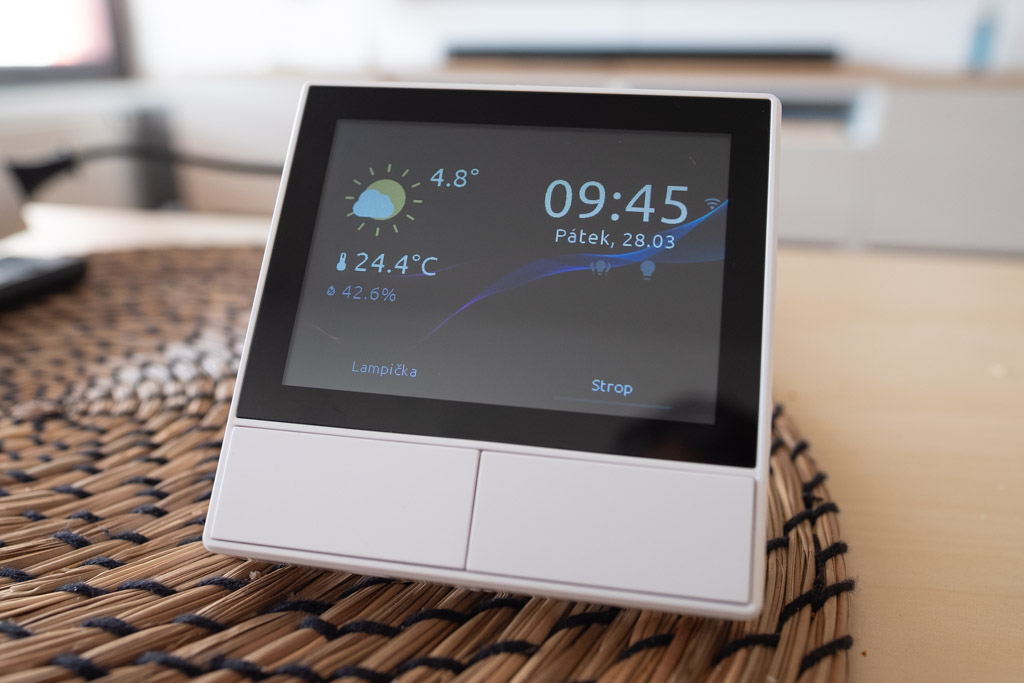
The Blueprint automatically detects the entity type (light, switch, cover) and displays the appropriate controls.
Advanced Features
Bluetooth Proxy
NSPanel with ESP32 can function as a Bluetooth proxy for BLE sensors:
- Enable Bluetooth proxy in ESPHome configuration
- BLE devices within panel range will automatically appear in HA
- This extends your Bluetooth network range
Custom TFT Design
If you enjoy customization, you can create your own display design:
- Download Nextion Editor
- Modify the HMI file according to your preferences
- Compile to TFT
- Upload to the panel
Requires knowledge of the Nextion platform, not for beginners.
Sonoff NSPanel EU, Gray
Smart control panel with integrated touchscreen display.Sonoff NSPanel EU, White
Smart control panel with integrated touchscreen display.CP2102 USB 2.0 to TTL UART Module
USB adapter for firmware upload (3.3V / 5.0V).Evaluation
After several months of using NSPanel with ESPHome, I can say I'm very satisfied. Installation does require some technical knowledge and patience, but the result is worth it.
✅ Main Advantages
- Complete control - no cloud dependency
- Deep integration - everything from Home Assistant at your fingertips
- Active community - regular updates and support
- Great price/performance ratio - amazing solution for ~$50
- Bluetooth proxy - bonus for BLE devices
⚠️ What Could Be Better
- Display quality - average viewing angles, slightly faded colors
- More complex installation - not for complete beginners
- TFT upload - sometimes it's a bit of a lottery
Recommendation
I recommend NSPanel with ESPHome if you:
- ✅ Use Home Assistant
- ✅ Have basic technical knowledge
- ✅ Don't want cloud solutions
- ✅ Appreciate good value for money
I don't recommend if you:
- ❌ Are a complete beginner
- ❌ Want a plug-and-play solution
- ❌ Require a premium display
If you're looking for an intelligent control panel with a good price-to-performance ratio and don't want to be dependent on the cloud, NSPanel with ESPHome is an excellent choice. Installation isn't trivial, but thanks to this guide, anyone with some technical knowledge should be able to handle it.