ESPHome - Smart Device from ESP32 in Minutes
ESPHome is an open-source framework that dramatically simplifies creating custom smart devices from inexpensive WiFi microcontrollers. Instead of complex C++ programming, you just need a simple YAML configuration file and ESPHome takes care of the rest.
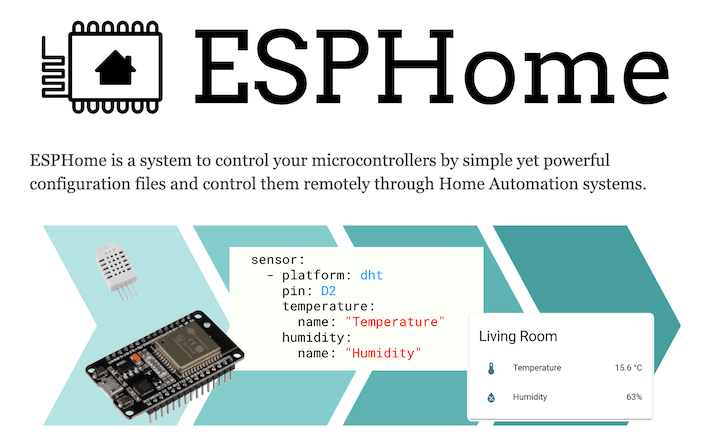
What is ESPHome
Essentially, it's a tool that allows you to:
- ✅ Create custom smart devices using simple YAML files
- ✅ Seamless integration with Home Assistant
- ✅ OTA updates - wireless firmware uploads
- ✅ Local control - no cloud dependency
- ✅ Hundreds of supported components - sensors, displays, relays...
- ✅ Automations directly on the device
- ❌ No need to program in C++
- ❌ No need to know Arduino IDE
- ❌ No need for cloud services
- ❌ No need for complex configuration
ESPHome is part of the Open Home Foundation - the same organization that Home Assistant belongs to. This ensures long-term support and development.
Supported Microcontrollers
ESPHome supports a wide range of hardware:
| Platform | Description | Usage |
|---|---|---|
| ESP32 | Most popular, WiFi + Bluetooth | Most projects |
| ESP8266 | Older, WiFi only | Simple projects |
| RP2040 | Raspberry Pi Pico | Specific uses |
| Others | Nordic nRF52, Realtek RTL87xx, Beken BK72xx | Advanced projects |
For new projects, I recommend ESP32 - it has more memory, supports Bluetooth, and costs practically the same as ESP8266.
Installing ESPHome in Home Assistant
Installing the ESPHome addon is very simple:
Step 1: Installing the Addon
- In Home Assistant, go to Settings → Add-ons
- Click on Add-on Store (bottom right)
- Search for ESPHome
- Click Install
Installation may take several minutes depending on your connection speed and system performance.
Step 2: Starting the Addon
- After installation, click Start
- Wait for the addon to start (green icon)
- Click Open Web UI
The ESPHome Device Builder web interface will open, where you'll create and manage your ESP devices.
First Device - Step by Step
Let's create your first ESPHome device!
What You'll Need
Hardware:
- ESP32 or ESP8266 development board
- USB cable (data cable, not just charging!)
- Computer with USB port
Software:
- Home Assistant with ESPHome installed
- Web browser (Chrome or Edge)


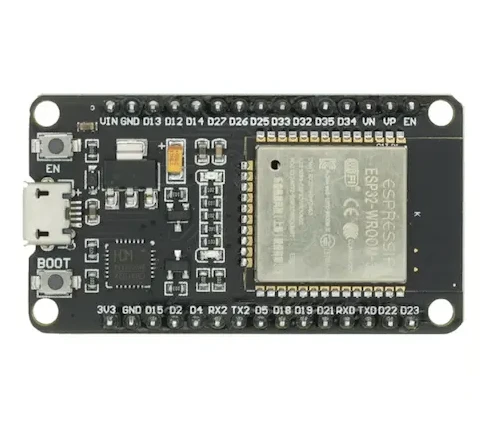
ESP32-WROOM
ESP32 development board with WiFi and Bluetooth for DIY projects and ESPHome.
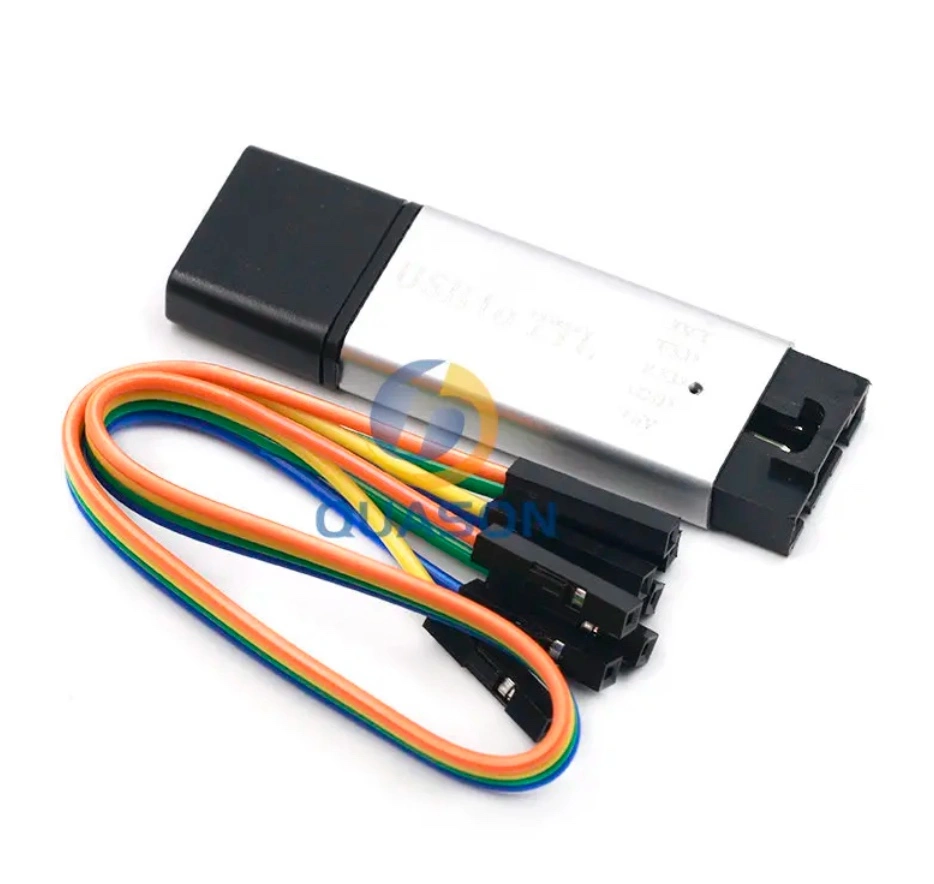
CP2102 USB 2.0 to TTL UART Module
USB adapter for firmware upload (3.3V / 5.0V).Creating Configuration
-
In ESPHome web UI, click "+ New Device"
-
The wizard will guide you through basic setup:
- Enter device name (e.g., "test-esp32")
- Select device type (ESP32, ESP8266...)
- Enter WiFi SSID and password
-
ESPHome will create a basic configuration
The resulting YAML file will look something like this:
esphome:
  name: test-esp32
  friendly_name: Test ESP32

esp32:
  board: esp32dev
  framework:
    type: arduino

# Enable logging
logger:

# Enable Home Assistant API
api:
  encryption:
    key: "your_encryption_key"

# Enable OTA updates
ota:
  - platform: esphome
    password: "your_ota_password"

wifi:
  ssid: !secret wifi_ssid
  password: !secret wifi_password

  # Fallback hotspot
  ap:
    ssid: "Test-Esp32 Fallback"
    password: "fallback_password"
ESPHome supports !secret for storing sensitive data outside the configuration. This data is stored in the secrets.yaml file.
Uploading Firmware - First Installation
For first upload, you need to use a USB cable:
- Connect ESP32 to computer using USB cable
- In ESPHome, click the three dots next to your device
- Select Install → Plug into this computer
- Select the serial port of your ESP32
- Wait for upload to complete (2-5 minutes)
The first firmware upload must be via USB. Only then do OTA (wireless) updates work.
Connecting to Home Assistant
After successful upload and WiFi connection, the device should automatically appear in Home Assistant:
- Go to Settings → Devices & Services
- Your ESPHome device should be in the Discovered section
- Click Configure
- Enter the encryption key from the configuration (if required)
- Confirm addition
Adding Components
Now that you have a basic device working, we can add some useful components!
Example: GPIO Switch
Add relay or LED control to the configuration:
switch:
  - platform: gpio
    name: "Relay 1"
    pin: GPIO5
    id: relay_1
Example: Binary Sensor (Button)
Add button or door/window sensor state monitoring:
binary_sensor:
  - platform: gpio
    name: "Button 1"
    pin:
      number: GPIO0
      inverted: true
      mode:
        input: true
        pullup: true
Example: DHT22 Temperature Sensor
sensor:
  - platform: dht
    pin: GPIO4
    temperature:
      name: "Temperature"
    humidity:
      name: "Humidity"
    model: DHT22
    update_interval: 60s
Updating Device
After editing the configuration:
- Click "Save" in the editor
- Click "Install"
- This time you can select "Wirelessly" - no USB needed! ⚡
After the first USB installation, all subsequent updates happen wirelessly via WiFi. It's fast and convenient!
Advanced Features
On-Device Automations
ESPHome allows running automations directly on the ESP chip, without needing to communicate with Home Assistant:
binary_sensor:
  - platform: gpio
    name: "Button"
    pin: GPIO0
    on_press:
      - switch.toggle: relay_1
Bluetooth Proxy
ESP32 can function as a Bluetooth Proxy to extend BLE coverage:
esp32_ble_tracker:
  scan_parameters:
    interval: 1100ms
    window: 1100ms

bluetooth_proxy:
  active: true
More about Bluetooth Proxy in my article Bluetooth Proxy.
Web Server
You can enable the built-in web server for direct control:
web_server:
  port: 80
Web server uses a lot of memory. I don't recommend using it simultaneously with Bluetooth Proxy!
Components and Options
ESPHome supports a huge number of components. Here's a selection of the most commonly used:
Sensors
- Temperature and humidity: DHT11/22, BME280, SHT3x, Dallas DS18B20
- Pressure: BME280, BMP280
- Light: BH1750, TSL2561
- Distance: HC-SR04, VL53L0X
- Energy: PZEM-004T, CSE7766, HLW8012
- CO2: MH-Z19, SCD30
Control
- Relays and switches: GPIO, PCF8574
- Lights: PWM, RGBW, FastLED
- Servo motors: Servo
- Fans: Fan
Displays
- LCD: HD44780, PCF8574
- OLED: SSD1306, SH1106
- E-ink: Waveshare
- TFT: ILI9341, ST7789
Communication
- I2C, SPI, UART
- MQTT
- Modbus
- IR transmitter/receiver
You can find a complete list of all supported components in the official ESPHome documentation.
Updating ESPHome Devices
When a new version of ESPHome is released, you can update devices directly from Home Assistant:
- An available update will appear in Home Assistant for ESPHome devices
- Click Update
- The update will happen automatically via OTA
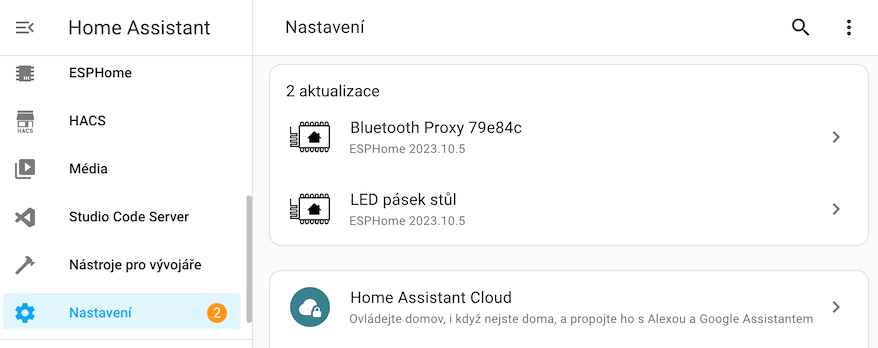
No need to go to ESPHome web UI - everything can be controlled directly from Home Assistant!
Tips and Tricks
Framework: ESP-IDF vs Arduino
For advanced projects (e.g., Bluetooth Proxy), I recommend ESP-IDF framework:
esp32:
  board: esp32dev
  framework:
    type: esp-idf  # Instead of default 'arduino'
ESP-IDF Advantages:
- Lower memory consumption
- Better performance
- More stable Bluetooth
When switching from arduino to esp-idf, you must flash via USB! OTA won't work due to partition table changes.
Secrets File
Use secrets.yaml for sensitive data:
# In configuration file:
wifi:
  ssid: !secret wifi_ssid
  password: !secret wifi_password

# In secrets.yaml file:
wifi_ssid: "MyWiFi"
wifi_password: "SuperSecretPassword123"
Debug Logging
To troubleshoot issues, increase logging level:
logger:
  level: DEBUG  # or VERBOSE for even more detail
Troubleshooting
Device Didn't Appear in Home Assistant
- Check that device is connected to WiFi (look in router)
- Check logs in ESPHome ("LOGS" button)
- Try manual addition via IP address
- Restart Home Assistant
OTA Update Fails
- Check WiFi signal stability
- Try updating via USB
- Check available memory in logs
Device Constantly Restarts
- Power issue - try different USB source
- Low memory - disable Web Server or reduce components
- Configuration error - check logs
Practical Projects
Room Thermometer
sensor:
  - platform: dht
    pin: GPIO4
    temperature:
      name: "Living Room Temperature"
    humidity:
      name: "Living Room Humidity"
    model: DHT22
    update_interval: 60s
Smart Switch with LED Indication
switch:
  - platform: gpio
    name: "Main Light"
    pin: GPIO5
    id: main_light
    on_turn_on:
      - light.turn_on: led_status
    on_turn_off:
      - light.turn_off: led_status

light:
  - platform: status_led
    name: "LED Status"
    id: led_status
    pin: GPIO2
Door/Window Sensor with Time Logging
binary_sensor:
  - platform: gpio
    name: "Main Door"
    pin:
      number: GPIO0
      mode:
        input: true
        pullup: true
      inverted: true
    on_press:
      then:
        - logger.log: "Door opened!"
    on_release:
      then:
        - logger.log: "Door closed!"
Evaluation
After several years of using ESPHome, I can say it's one of the best tools for DIY smart home.
✅ Main Advantages
- Simple configuration - YAML instead of C++
- Perfect integration with Home Assistant
- OTA updates - no cables
- Huge community - thousands of projects
- Local control - no cloud
- Active development - regular updates
- Cheap hardware - ESP32 for pennies
⚠️ What Could Be Better
- Steeper learning curve for complete beginners
- Limited memory on ESP8266 for complex projects
- First flashing requires USB cable
Recommendation
I highly recommend ESPHome if you:
- ✅ Use Home Assistant
- ✅ Want to create your own sensors/switches
- ✅ Don't want to learn C++ programming
- ✅ Appreciate local control without cloud
- ✅ Want to save compared to commercial solutions
I don't recommend if you:
- ❌ Are an absolute beginner (start with ready-made Zigbee/WiFi devices)
- ❌ Want plug-and-play solution without any configuration
- ❌ Don't use Home Assistant (then consider Tasmota)
Related Articles
Additional Resources
- Official ESPHome Documentation
- ESPHome Device Database - database of supported devices
- ESPHome Discord - active community
- ESPHome GitHub - source code