Christmas Tree Automation with Apple TV Support
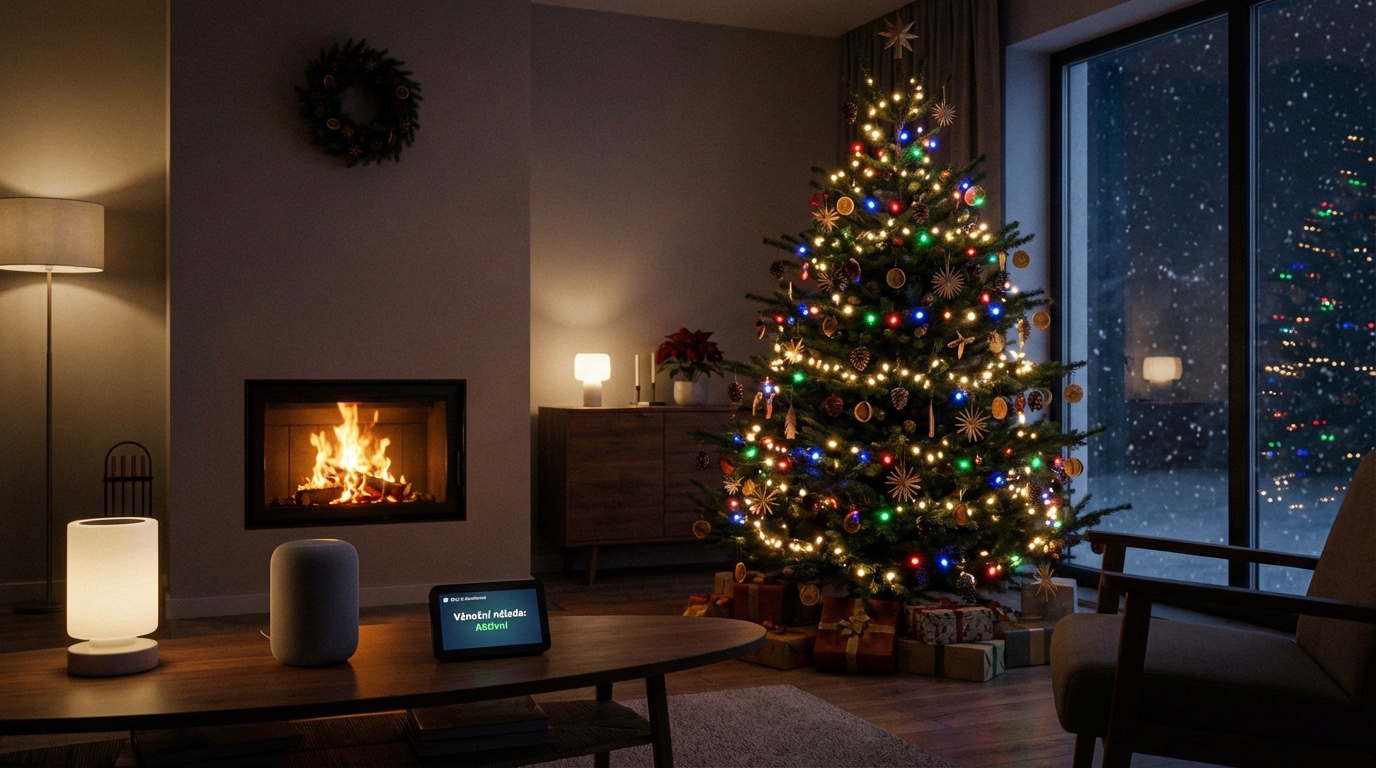
In this article, we'll show you a practical automation example that solves a common Christmas problem - how to automatically control your Christmas tree lights, but not turn them off when you're watching a movie in the evening.
The Problem
I have a Christmas tree connected to a smart Zigbee plug (entity light.tuya_socket_stromek) and I would like to:
- Automatically turn on the lights in the morning at 7:30
- Automatically turn off the lights in the evening at 22:00
- BUT - if I'm watching Apple TV at 22:00, the tree should stay lit and turn off only when I turn off Apple TV
This is a typical example of a situation where a simple automation is not enough and we need to add some logic.
Simple Solution - Time Switch
Let's start with a simple version that doesn't take Apple TV into account yet. This automation simply turns on the tree at 7:30 and turns it off at 22:00.
alias: Christmas tree - simple time switch
description: Turns on tree at 7:30, turns off at 22:00
trigger:
  - platform: time
    at: "07:30:00"
    id: turn_on
  - platform: time
    at: "22:00:00"
    id: turn_off
condition: []
action:
  - choose:
      - conditions:
          - condition: trigger
            id:
              - turn_on
        sequence:
          - service: light.turn_on
            target:
              entity_id: light.tuya_socket_stromek
            data: {}
      - conditions:
          - condition: trigger
            id:
              - turn_off
        sequence:
          - service: light.turn_off
            target:
              entity_id: light.tuya_socket_stromek
            data: {}
mode: single
If you're a beginner and don't know how to work with YAML code in automations, follow these steps:
- In Home Assistant, go to Settings → Automations & Scenes
- Click Add Automation → Create new automation
- In the top right corner, click on the three dots (⋮) and select Edit in YAML
- Delete all content and paste the YAML code from the article
- Click Save
- Important: After saving, click the three dots again and select Edit in visual editor - you'll see the automation in a clear graphical interface that you'll understand better
We use YAML primarily for easy sharing of automations, but for everyday work, the visual editor is much more pleasant.
This automation works, but it has one problem - it turns off the tree always at 22:00, even if you're watching a movie.
Improved Solution - with Apple TV Support
Now let's add some intelligence. The automation will check if Apple TV is running (entity media_player.obyvak), and if so, it will wait until you turn it off.
alias: Christmas tree - time switch with Apple TV
description: Turns on tree at 7:30, turns off at 22:00 (if Apple TV is not running)
trigger:
  - platform: time
    at: "07:30:00"
    id: turn_on
  - platform: time
    at: "22:00:00"
    id: time_to_turn_off
  - platform: state
    entity_id:
      - media_player.obyvak
    to: "off"
    id: appletv_turned_off
condition: []
action:
  - choose:
      - conditions:
          - condition: trigger
            id:
              - turn_on
        sequence:
          - service: light.turn_on
            target:
              entity_id: light.tuya_socket_stromek
            data: {}
      - conditions:
          - condition: trigger
            id:
              - time_to_turn_off
        sequence:
          - if:
              - condition: state
                entity_id: media_player.obyvak
                state: "off"
            then:
              - service: light.turn_off
                target:
                  entity_id: light.tuya_socket_stromek
                data: {}
            else:
              - service: system_log.write
                data:
                  message: Tree stays lit, Apple TV is still running
                  level: info
      - conditions:
          - condition: trigger
            id:
              - appletv_turned_off
          - condition: time
            after: "22:00:00"
            before: "07:30:00"
          - condition: state
            entity_id: light.tuya_socket_stromek
            state: "on"
        sequence:
          - service: light.turn_off
            target:
              entity_id: light.tuya_socket_stromek
            data: {}
mode: single
How Does It Work?
The automation has three triggers:
- Time 7:30 (
id: turn_on) - simply turns on the tree - Time 22:00 (
id: time_to_turn_off) - checks if Apple TV is running:- If Apple TV is off → tree turns off immediately
- If Apple TV is running → nothing happens (just writes a note to the log)
- Apple TV turns off (
id: appletv_turned_off) - if Apple TV turns off anytime after 22:00 (and before 7:30 in the morning), the tree automatically turns off
Safety Checks
Notice the conditions in the third trigger:
- condition: time
  after: "22:00:00"
  before: "07:30:00"
- condition: state
  entity_id: light.tuya_socket_stromek
  state: "on"
These conditions ensure that:
- The tree turns off only at night (between 22:00 - 7:30), not when you turn off Apple TV during the day
- The tree turns off only if it's on (we don't try to turn off already turned off light)
Possible Improvements
You can further improve this automation according to your needs:
1. Maximum Light Duration
If you want to have a safeguard that the tree turns off at midnight at the latest (even if Apple TV is running), add another trigger:
- platform: time
  at: "00:00:00"
  id: force_turn_off
And add to actions:
- conditions:
    - condition: trigger
      id:
        - force_turn_off
  sequence:
    - service: light.turn_off
      target:
        entity_id: light.tuya_socket_stromek
      data: {}
2. Notifications
You can add a notification to your phone when the tree turns off later due to Apple TV:
- service: notify.mobile_app_your_phone
  data:
    message: "Christmas tree stays lit, you're watching Apple TV 🎄"
3. Presence Check
If you have presence tracking in Home Assistant (person entity), you can add a condition that the tree turns off only when you're not home (to save energy):
- condition: state
  entity_id: person.jirka
  state: "not_home"
4. Limit to Advent Period Only
If you want the automation to work only in December and January, add to global conditions:
condition:
  - condition: template
    value_template: "{{ now().month in [12, 1] }}"
Summary
In this article, we showed how to create a smart automation for a Christmas tree that:
- ✅ Automatically turns on lights in the morning
- ✅ Automatically turns off lights in the evening
- ✅ Respects your evening TV watching
- ✅ Has safety checks against unwanted behavior
You can use the same principle for any other scenarios where you need to time-control devices, but with respect to current activity - for example, turning off lights when no one is watching TV, turning off heating when you're not home, or controlling blinds based on whether you're sleeping.
Products Used
For this automation, I used the following devices:

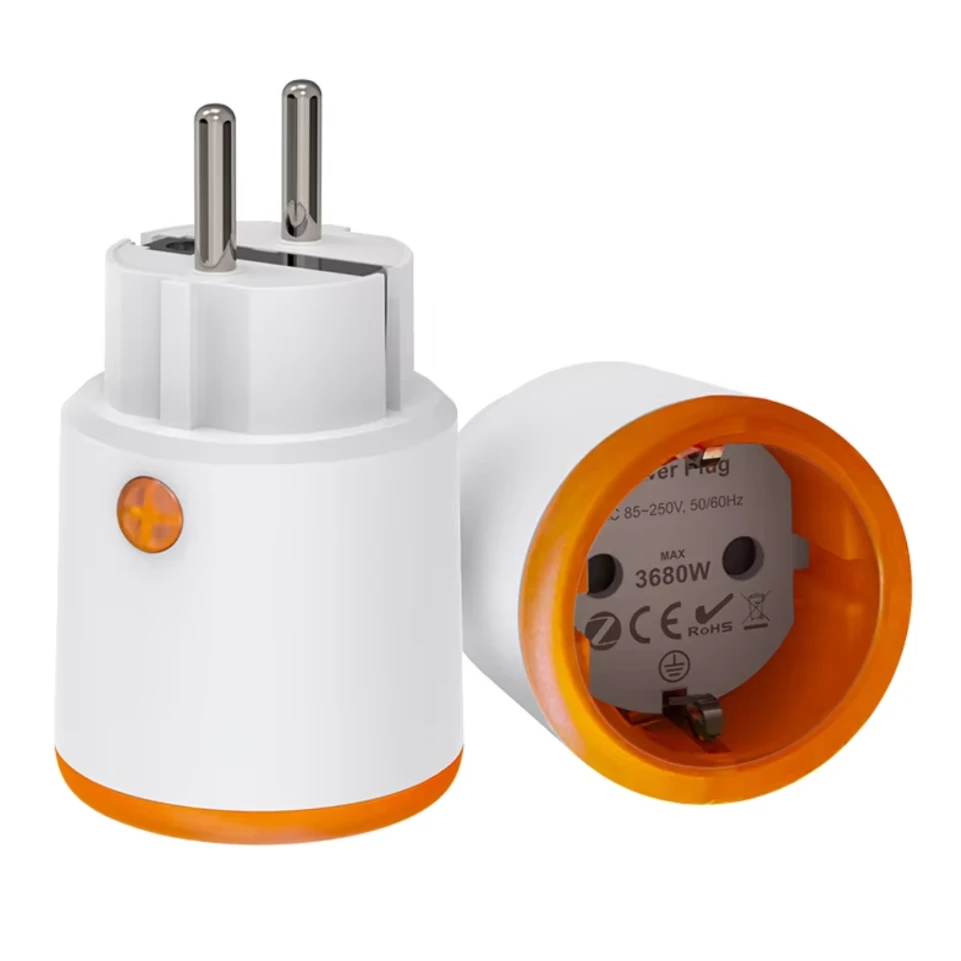
Tuya Zigbee Smart Plug 16A
Smart WiFi plug with energy consumption monitoring.



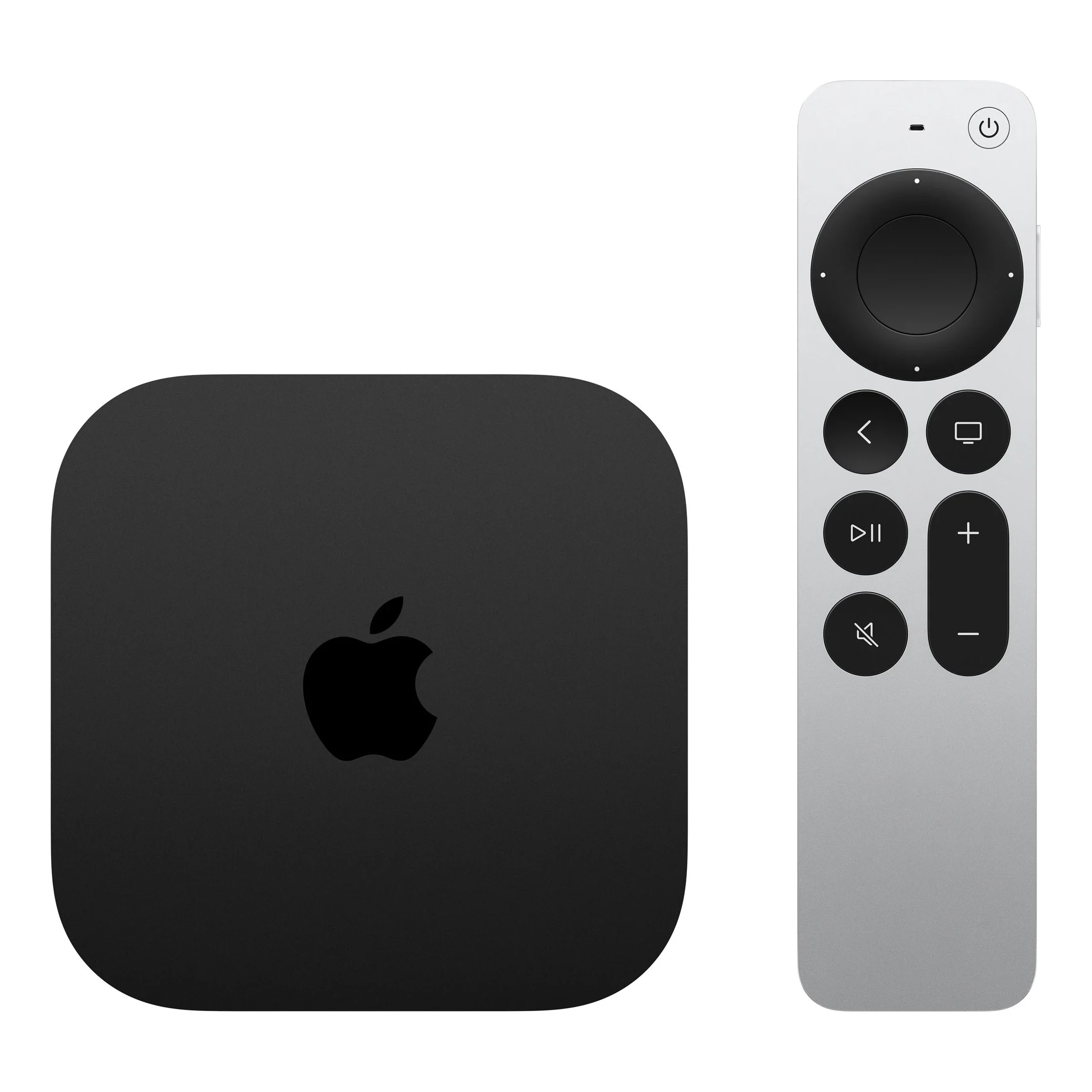
Apple TV 4K 2022 64G
Media center with 4K Ultra HD support, 64GB storage, tvOS operating system.Tuya Zigbee Smart Plug 16A - smart plug with energy consumption monitoring, compatible with Zigbee coordinators in Home Assistant. Ideal for controlling Christmas lights, appliances, or other electrical devices.
Apple TV 4K 2022 - multimedia center with HomeKit and Thread support. In this automation, it serves as a trigger for intelligent control of turning off the tree based on whether you're currently watching a movie.
Merry Christmas and enjoy your automated smart home! 🎄✨